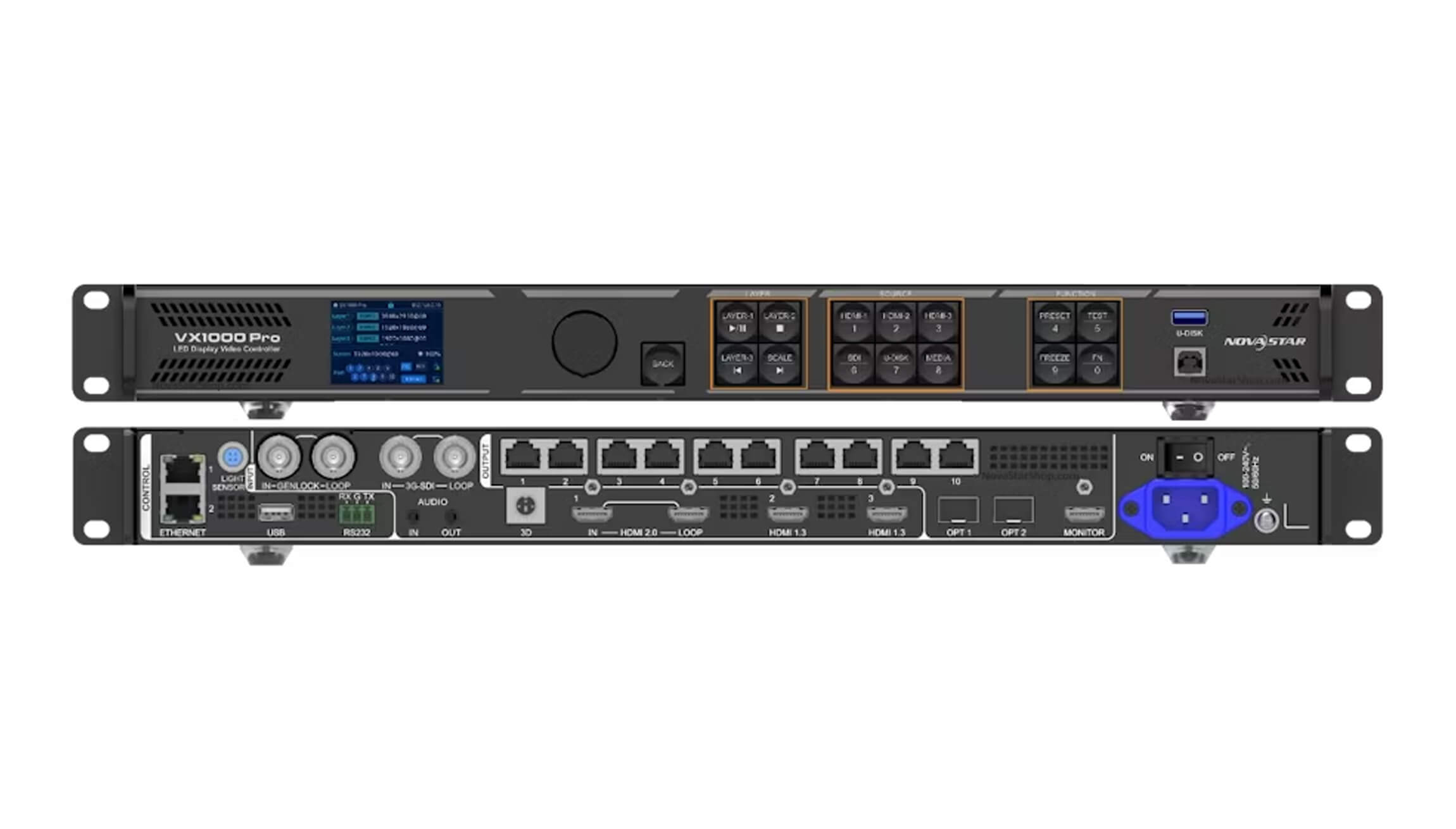
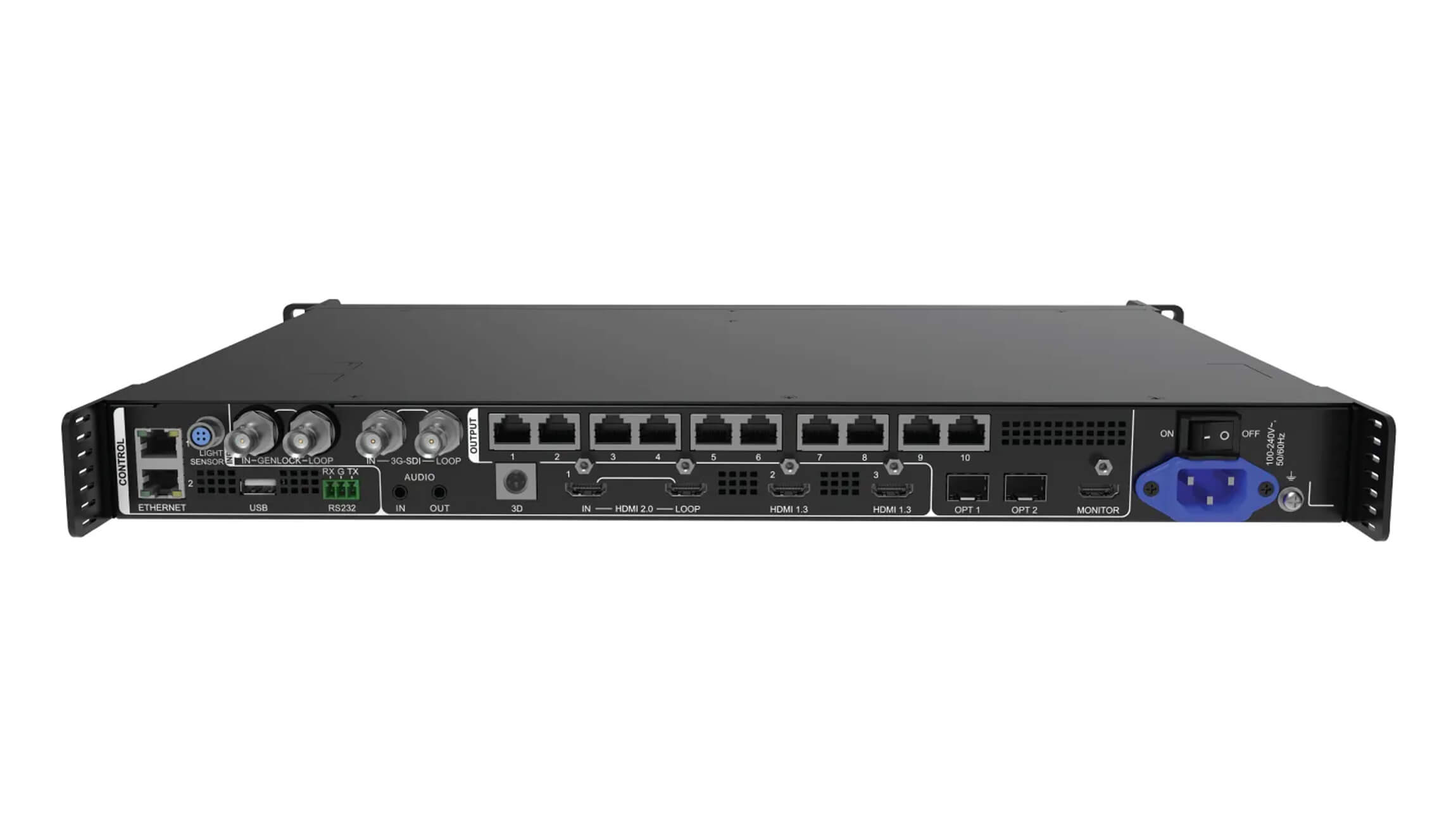
The VX1000 Pro monitor output is fixed at 1920 × 1080 at 60 Hz. NovaStar lists this HDMI 1.3 port for monitoring the controller’s output image. A compatible 4K source can enter through HDMI 2.0, but it will not make the rear MONITOR port send 4K. If the job needs the original source at another device, assess the separate HDMI 2.0 LOOP connection. If it needs a 4K copy of the finished composition, specify that as a separate requirement.
For a rental AV integrator preparing a show rack, this matters before the cable list goes to the crew. “HDMI out to monitor” could mean a confidence display for the operator, a source feed for another processor, or a recording feed. All three may use HDMI connectors. Only one describes the published purpose of the MONITOR jack.
VX1000 Pro Monitor Output and HDMI Loop Serve Different Roles
On the rear panel, MONITOR sits near the optical connectors. The HDMI 2.0 IN and LOOP jacks are grouped elsewhere. Use these labels on the drawing and at both cable ends. A label that only says HDMI OUT leaves the installer to guess what picture is expected at the destination.
Use the VX1000 Pro monitor output when the operator needs to observe the processed output image at the control position. The monitor has to accept a progressive 1920 × 1080 signal at 60 Hz. Check the actual input on the display, including any extender or adapter in the chain. The panel’s native resolution is a different specification from the formats it can accept.
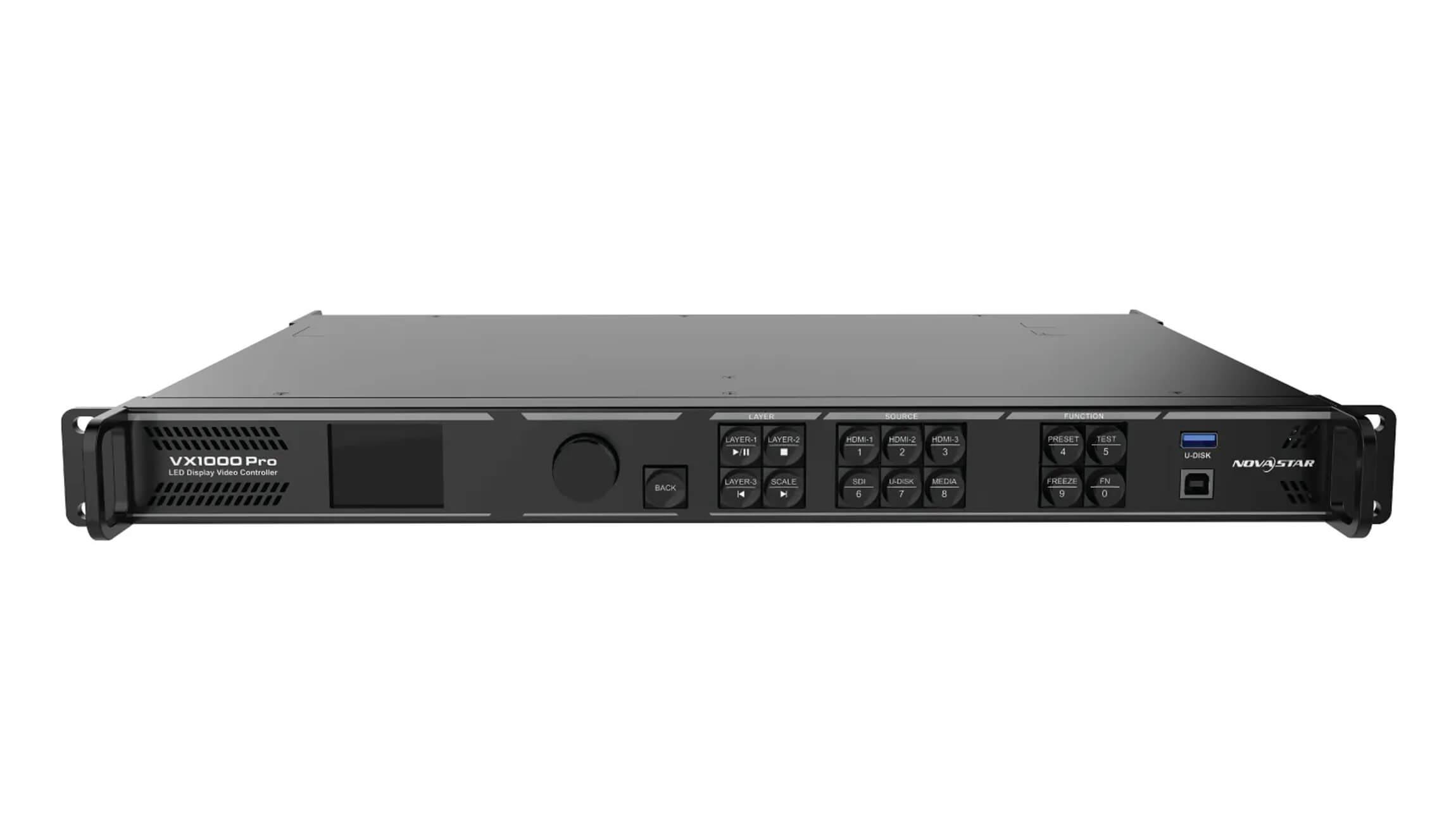
The HDMI 2.0 LOOP jack is associated with HDMI 2.0 IN. Treat it as a way to pass that input onward to a compatible device. A downstream operator looking at that feed should expect to see the source, so changes made to layer placement or crop on the controller should not be expected to appear there. Use the Старонка прадукту VX1000 Pro to identify the hardware, and check the format table in NovaStar’s July 30, 2026 specification V1.4.0 for the intended source settings.
| прызначэння | Connection to assess | Пацвярджэнне прыёмкі |
|---|---|---|
| Local confidence display | Rear MONITOR, HDMI 1.3, fixed 1920 × 1080 at 60 Hz | The display locks at the specified timing and shows a deliberate change made to the composition. |
| Second processor that needs the HDMI source | HDMI 2.0 LOOP for the input on HDMI 2.0 IN | The receiving device locks to the deployed source format through the actual cable path. |
| Recorder that needs a 4K copy of the composition | A separate output path capable of delivering the required composition and format | A sample recording confirms both the composed picture and the recorded raster and frame rate. |
| Святлодыёдныя шафы | Mapped LED data outputs and compatible receiving hardware | The actual wall passes an orientation and cabinet order check, independent of what the monitor shows. |
Why a Confidence Display Can Look Different From the Wall
The VX1000 Pro monitor output packages the image in a standard monitor timing. An extra wide stage wall can have a very different shape from that monitor. NovaStar’s VX Pro Series User Manual V1.2.0 describes two scaling choices under Monitor Settings. Keep Ratio preserves the original output image’s proportions and fills unused areas with black. Full Screen fills the monitor display. Neither choice is a way to select a new HDMI output timing on this model.
Consider a hypothetical wide stage layout with a centered sponsor logo. In Keep Ratio the confidence screen can display black space above and below the picture. That is consistent with fitting a wide image into the monitor’s frame. The crew should confirm the logo shape and its intended position on the physical LED wall before signing off. On the other hand, an image that fills the confidence display still needs a wall check for edge clipping and wrong cabinet order.
The distinction saves time when the operator says that the screen is cropped. Ask which screen they mean and what the monitor’s input information reports. If the VX1000 Pro monitor output shows the whole image with black borders while the wall has missing content, changing only monitor scaling does not establish a fix to the LED mapping. For the separate question of how working mode affects the controller’s processing, see the discussion of ByPass and scaling on the VX600 Pro. Confirm the exact model and mode on the job rather than carrying another unit’s settings across.
Verify the Picture at Each Destination
Before the show, put an asymmetric border and a clearly marked corner on approved test content. Then add or reposition a visible item in the controller’s composition while keeping the source unchanged. Document what changes on the confidence display, what remains at the loop destination, and where the final composition lands on the cabinets. Use the planned device mode and the same downstream equipment the show will use. That small test helps identify an incorrect cable label even if both HDMI destinations initially show similar images.
If there is no picture at the VX1000 Pro monitor output, start with a short known working HDMI cable and a display confirmed to accept 1080p60. Select the correct display input and check the rear panel label. A working substitute chain narrows the problem to the deployed monitor, cabling or intermediate equipment. Keep a record of the passing connection so the crew can restore it after checking the full cable run.
If the monitor displays the composition but the cabinets stay black, review the settings and hardware for the LED path separately. A confidence display cannot show you whether each receiving card is powered, whether a data chain reaches the far cabinet, or whether the port map matches the installed layout. Conversely, if the wall works but the confidence display fails, check the monitoring branch before changing the working cabinet map.
Questions Before Specifying the Monitor Feed
Can a UHD monitor accept the 1080p60 feed and display it full screen?
Often it can, provided the selected monitor input accepts that timing. The display may scale the image to its native panel resolution. A UHD panel showing the image across its whole screen does not turn the VX1000 Pro monitor output into a 4K signal. Check the timing reported by the monitor’s input information page.
Should I expect a recorder on the HDMI 2.0 loop to capture controller graphics and layer changes?
Choose that route to capture the associated HDMI input. If the deliverable is a recording of the finished controller composition, verify the picture and timing on the route intended for that deliverable. Record a short clip with a visible composition change and inspect the saved file before committing the rack design.
Can I verify cabinet timing by filming only the confidence monitor?
A phone recording of an LCD monitor tells you about that display and camera combination. Evaluate camera banding, apparent flicker and synchronization on the actual LED wall with the production camera settings. The VX1000 Pro monitor output has its own specified timing and is a different observation point.
Specify What the Remote Display Needs to Show
Write down the HDMI source format, which destinations need the original source or the composed picture, and the timing each device must receive. Identify the actual confidence display input, shooting or recording requirements, link lengths, and the LED receiving hardware. If you use a capture device, state whether the production requires a UHD file or a UHD signal arriving at its input. Those are separate checks.
Send the connection drawing and display requirements to EagerLED before ordering. Mark the VX1000 Pro monitor output, HDMI 2.0 LOOP and LED cabinet paths separately so the proposed equipment can be checked against the intended role of each connection.