NovaStar’s CMS130 HDMI input color formats include RGB 4:4:4, YCbCr 4:4:4 and YCbCr 4:2:2 at 8 or 10 bits, with a listed ceiling of 1920 × 1080 at 60 Hz. The manufacturer’s format table excludes YCbCr 4:2:0 and 12-bit HDMI input. So a source reporting 1080p60 may still be sending a format outside the controller’s published support.
For an AV integrator reusing a CMS130 in a refurbished LED wall, put the actual signal format in the source schedule before approving new playback hardware. The line item needs the connector, resolution, frame rate, color format and bit depth. Use the same signal settings during rehearsal so that a different laptop or adapter does not silently change what the controller receives.
CMS130 HDMI input color formats by source setting
Use the Video Source Features table on page 5 of the NovaStar CMS130 specification to check the row for the actual output. Pixel dimensions and refresh rate describe the shape and timing of the signal. RGB and YCbCr describe the way its color is represented. In a YCbCr signal, the sampling format also controls how often the two chroma components are sampled. A 1080p60 timing can therefore be carried in several different formats.
The CMS130 HDMI input color formats in the table apply to its HDMI 1.3 connector. The DVI-D input has a separate entry for 8-bit RGB 4:4:4 up to 1080p60. Changing the physical connector or using an adapter does not establish that the source is now sending the listed DVI format. Check the output generated by the entire source chain.
| Source setting | Published CMS130 entry | What to confirm before handover |
|---|---|---|
| HDMI RGB 4:4:4 at 8 or 10 bits | Listed up to 1920 × 1080 at 60 Hz | Use 8-bit RGB for a simple reference test if the source offers that setting. |
| HDMI YCbCr 4:4:4 or 4:2:2 at 8 or 10 bits | Listed up to 1920 × 1080 at 60 Hz | Read the chosen sampling format at the output of the deployed source or switcher. |
| HDMI YCbCr 4:2:0 at 8 or 10 bits | Unsupported in the format table | Check for a supported alternative at the source, even if the timing already reads 1080p60. |
| HDMI 12-bit output | Unsupported in the format table | Confirm that the source can use a listed bit depth when connected to the planned equipment. |
| DVI-D RGB 4:4:4 at 8 bits | Listed up to 1920 × 1080 at 60 Hz | Qualify the digital chain separately if DVI is part of the permanent design. |
Establish a source the controller can read
Start with a test source that can report or explicitly select its output format. On a bench or in a maintenance window, connect it to the selected HDMI input with a known working cable. A documented starting point is 1920 × 1080 at 60 Hz in 8-bit RGB 4:4:4 if the source supports it. Show approved unprotected test material with a moving clock and a color bar. The position of the clock helps distinguish a live image from a frozen frame, and a visible border gives you an edge to check when the wall scales the picture.
Write down the format that actually passed. The content file’s properties and the video output settings are different records. For example, a player can decode a file encoded as 4:2:0 and then send RGB over HDMI. A second device may use a different HDMI output format when asked to show the same file. The CMS130 HDMI input color formats apply to what arrives on the cable, so a file inspection alone will not tell you what the controller saw.
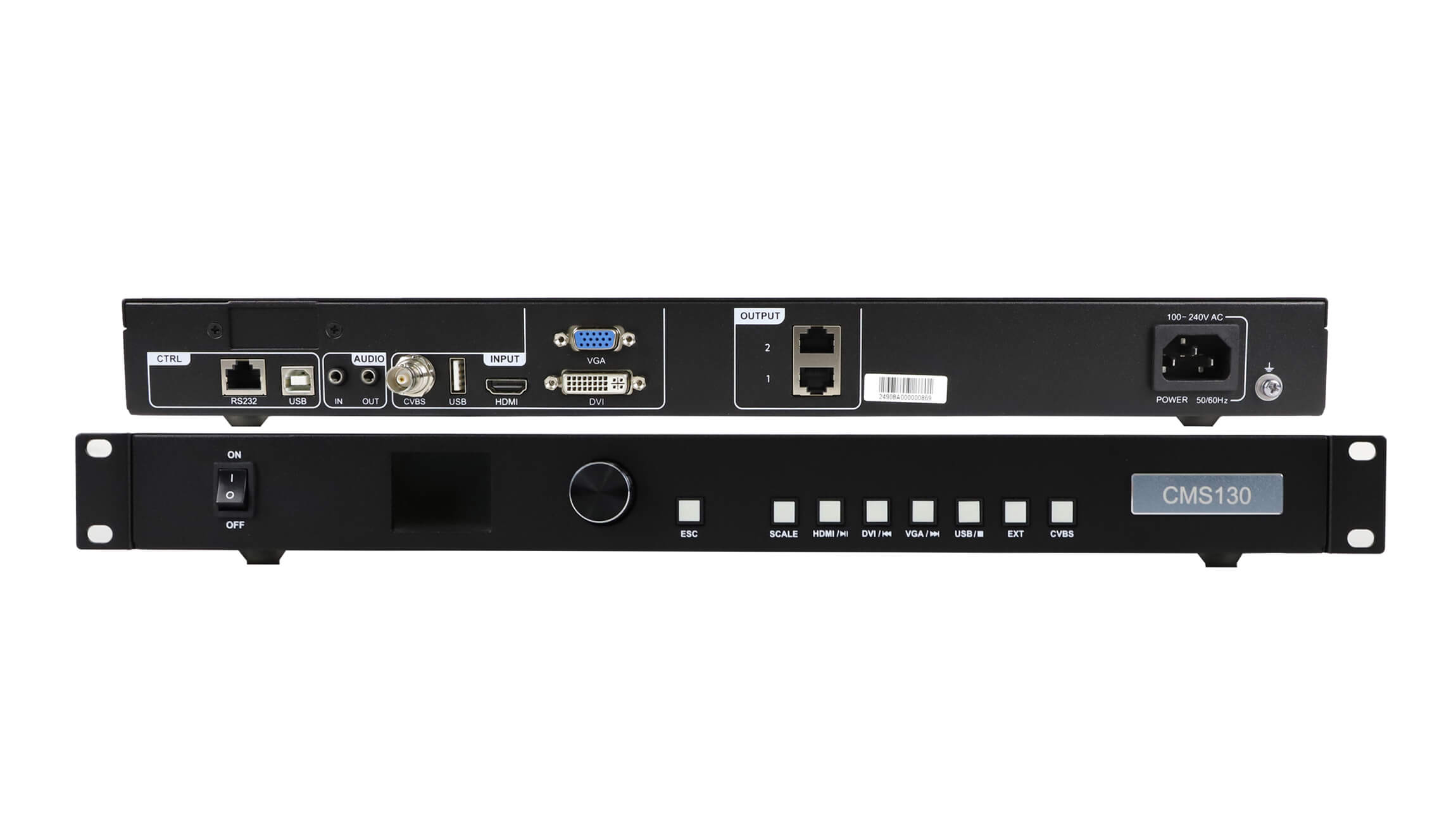
If the reference source fails, first confirm which CMS130 input is selected. The archived specification describes the front indicator as steady when an input signal is present and in use, and flashing when the selected input has no signal. Use the indicator as a clue and keep the reference format and cable constant while checking the connection. If the controller receives the signal and the wall has a blank section, inspect the mapped output path as a separate fault.
Check the complete signal path
The reference should be tested again through the installed cable length, signal switchers and any adapter at the source. Some sources choose output parameters based on the capabilities advertised by the equipment they are connected to. The CMS130 specification lists EDID management, so preserve the as-tested source and device settings in the handover record. Exact menu steps depend on the installed equipment and the matching documentation.
Suppose a replacement player shows its 1080p60 menu on a bench monitor, but the LED controller receives no usable picture after installation. Check the output format with the CMS130 or with the switcher connected, and compare it with the supported row. If the deployed chain reports YCbCr 4:2:0 while the reference was 8-bit RGB, set the source to a listed output combination where the source allows it. Then repeat the check on the wall. Record the original and passing tuples so the next technician can repeat the test.
If the supported test pattern appears but the approved show feed still fails, keep that result as separate evidence. The specification also lists HDCP 1.4 for HDMI. For a protected feed, confirm supported handling with the source provider and the equipment suppliers. A passing unprotected pattern does not establish that the protected source, switcher and controller can work together. Keep the source’s intended protection settings in the acceptance brief.

Include the picture behavior at startup and when the operator switches sources in the test record. A laptop may show a working desktop at one setting and change timing when it starts a presentation. A media player can also return to its automatic output setting after a restart. Test those normal transitions with the approved sources and use the display’s expected behavior during the handover. Report which transition failed before replacing parts.
Questions about the input format
Does a wall with fewer pixels make a 12-bit HDMI signal compatible?
The receiver encounters the HDMI signal before the image is mapped to the cabinets. The 12-bit output is outside the published CMS130 HDMI input color formats even on a small wall. Verify an accepted source format and check cabinet loading as a separate step.
Does the controller’s USB file support tell me which HDMI signal will work?
The USB playback path decodes files, while HDMI receives a timed signal from another device. Verify the supported rows for the deployed input. The CMS130 USB playback guide addresses drive and file compatibility for the USB path.
Which format should I document if a converter sits before the CMS130?
Record what enters the converter and what leaves it. Check the converter output against the CMS130 input table and verify every cable and intermediate device in the approved layout. This helps identify the right replacement when the source is far from the wall.
Specify the source and the LED wall separately
For a proposed NovaStar CMS130 controller, list the operating source, connection type, accepted resolution, refresh rate, bit depth and sampling in the order record. Match the CMS130 HDMI input color formats to the actual output of the source chain. Document the native wall dimensions and cabinet map alongside that record so a passing input test can be compared with the image on the physical display.
Send EagerLED the source model, signal settings and wall layout for a compatibility review. Include the planned switcher or converter and the source formats the operator must use. If two sources will alternate, supply a passing signal record for each of them.