After an HD-B6L USB program update that copies the program into the controller’s internal storage, you can remove the USB drive once the copy is complete. If you chose playback from the USB drive, keep the drive attached for that content. Watching the new image while the drive is plugged in cannot distinguish between the two modes.
Consider a sign integrator preparing a standalone LED poster for a shop. The team needs to deliver a campaign that plays without leaving a flash drive in the enclosure. The handover test should verify where the campaign lives, what the poster plays after the drive comes out, and how staff will deliver the next campaign.
Choose the HD-B6L USB program update mode
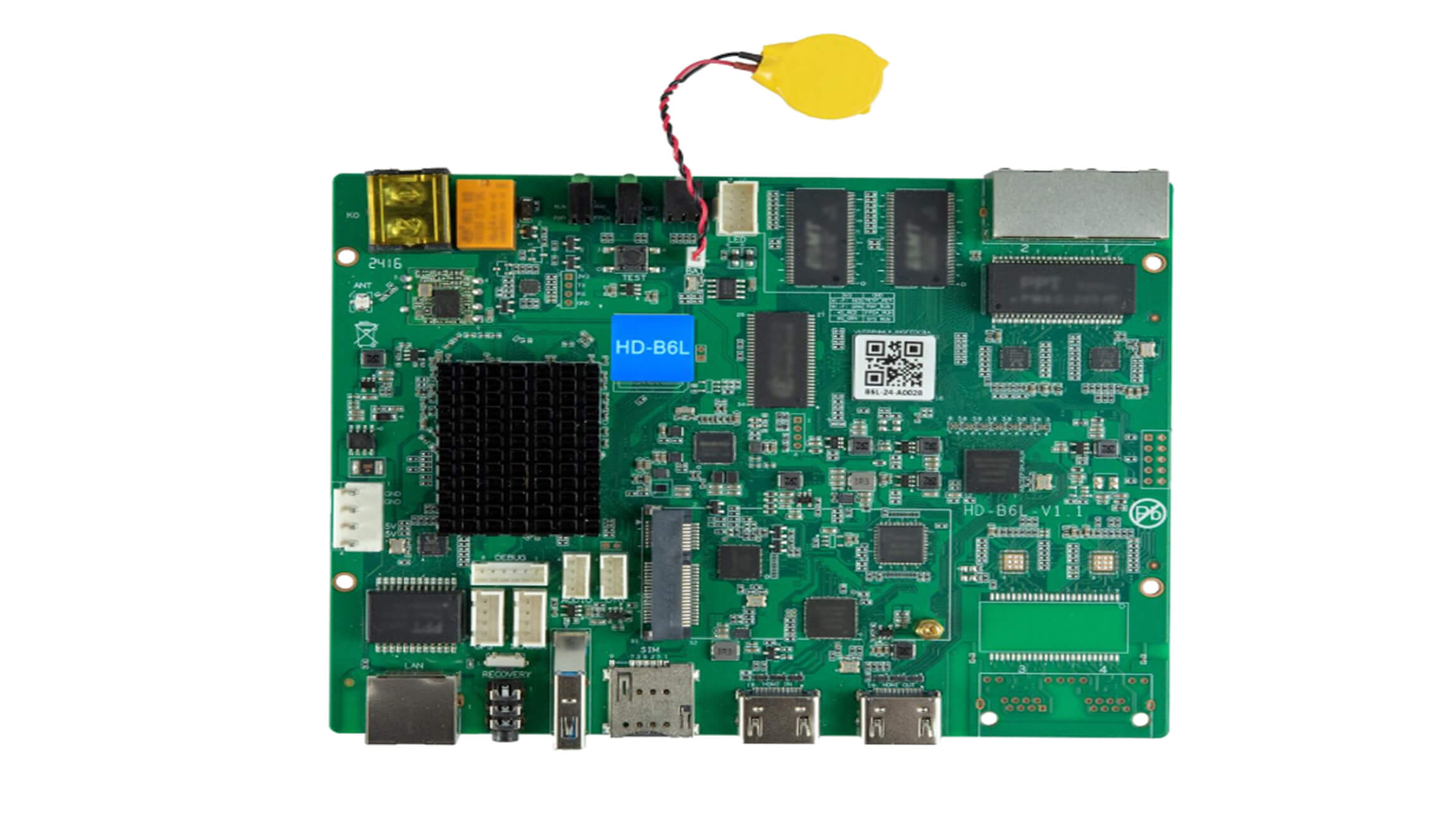
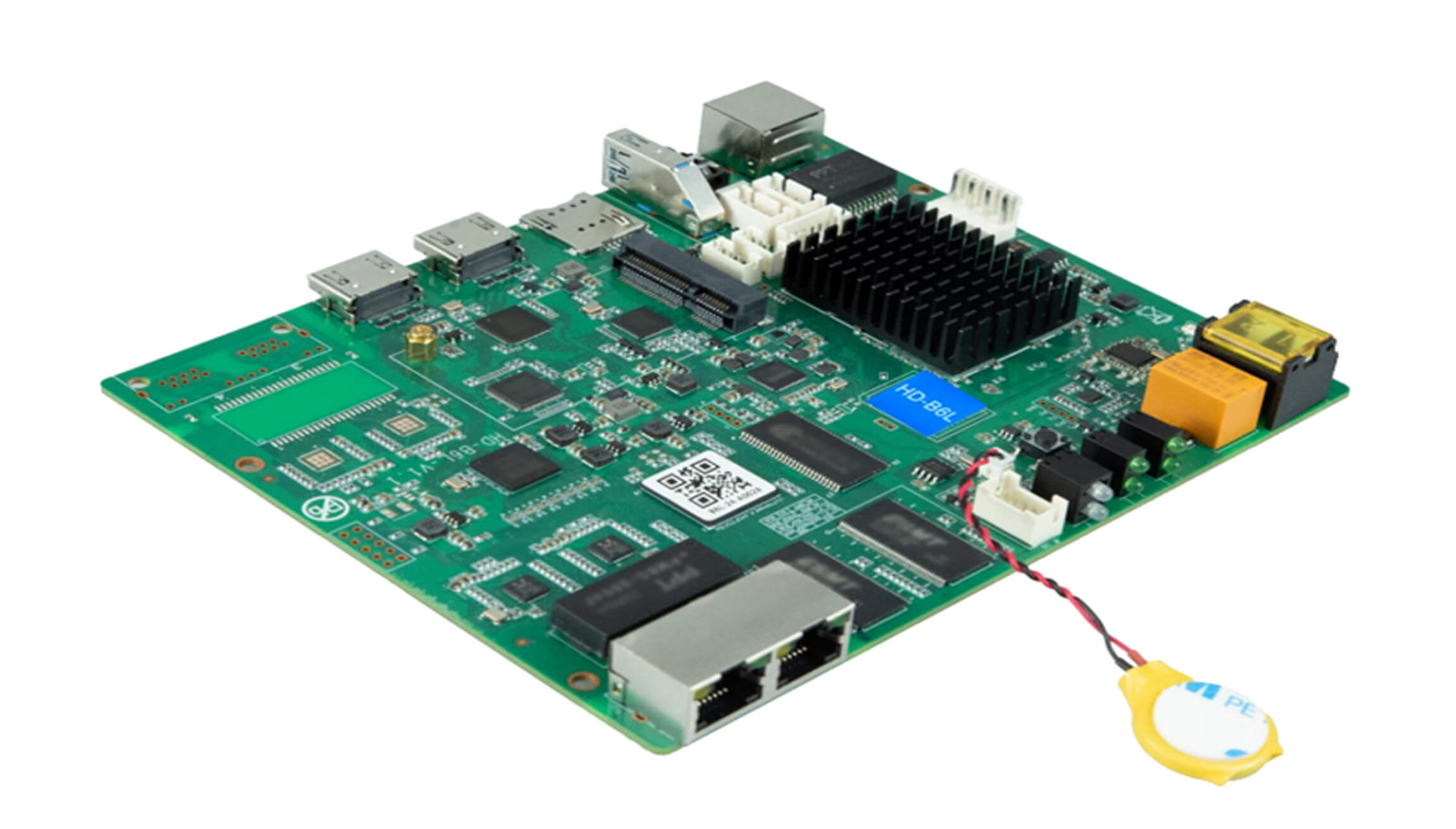
Huidu’s HD-B6L Specification V1.0 identifies USB program updating, program playback, and storage expansion. It lists 16 GB of nominal internal storage. Huidu’s HDPlayer Operating Manual V3.1 describes two functions in the USB export dialog. Update Program prepares the drive for copying the program to the controller. Display prepares content to be read from the inserted drive. Labels can vary by software release, so confirm the function shown on the actual workstation before export.
For an HD-B6L USB program update with no drive left on site, choose the function that copies the prepared campaign into internal storage. Huidu’s HDPlayer instructions describe removing the drive after the copy finishes, at which point the display shows the new program. For direct display from removable media, the drive remains the source. A temporary visual demonstration with that drive attached is useful for reviewing the content but leaves the installation requirement unresolved.
| HDPlayer function in the manual | Where the campaign plays from | Acceptance evidence |
|---|---|---|
| Update Program | Internal storage after a successful copy | Copy finishes and a clearly identified new campaign remains visible after removal |
| Display | Content read from the attached drive | The approved campaign runs with the designated drive attached and the handover record lists it as a dependency |
| Export result unclear | Unconfirmed | Check the project, target display, software release and visible export settings before concluding that the update was stored |
Prove that the campaign plays without the drive
Give the test campaign a visible identifier that is easy to distinguish from what the poster already shows. A short version mark on an approved test slide or a distinctive first frame is enough. If the exported file and the old program look identical, the team could remove the drive and mistake the previous campaign for the successful HD-B6L USB program update. Record the project version and the poster identifier together before leaving the site.
During the test, allow the copy to complete and follow the completion indication for the installed software and firmware. In the planned asynchronous playback mode, confirm the version mark after the drive is removed and watch the complete program loop. Check each asset that matters to the handover, such as a timed image change or the final video segment. If the mark or one of the assets disappears, preserve the project and capture the screen and export state for troubleshooting. A filename on the drive alone does not establish that every asset copied and played correctly.
If the operating requirement includes recovery after a scheduled shutdown, test a normal restart separately with the drive removed and the approved schedule active. A successful check immediately after removal answers the storage question for the running program. A restart test answers whether the poster comes back in the expected playback mode under the site’s configuration. Ask the installer to record both observations when the venue depends on unattended operation.
Check what the poster should play next
The HD-B6L can show stored asynchronous programs and can receive a synchronous HDMI source. A poster installed with a live source may be displaying that source while the USB update is being evaluated. Check the active playback mode during the handover. Test the new stored program in the setting the venue will use and check each required time window. The Huidu manual treats program timing and transfer as separate parts of the workflow.
The nominal capacity is a product specification. Before an HD-B6L USB program update, check how much storage the unit actually has available for the approved export. Consider the full set of content that the venue intends to keep on the controller. A small test clip can prove that a program copied successfully. Repeating the same check with the final campaign confirms that the real package works with the installed system and software release.
Record the method the venue can repeat
Write down the target display, the project version, the software release, the device firmware and the USB export function used. For an HD-B6L USB program update that is meant to leave the drive free for later use, include the observation after removal in the service ticket. Where several posters show different campaign variants, keep a separate note for each display so a later service visit can identify which version belongs where.
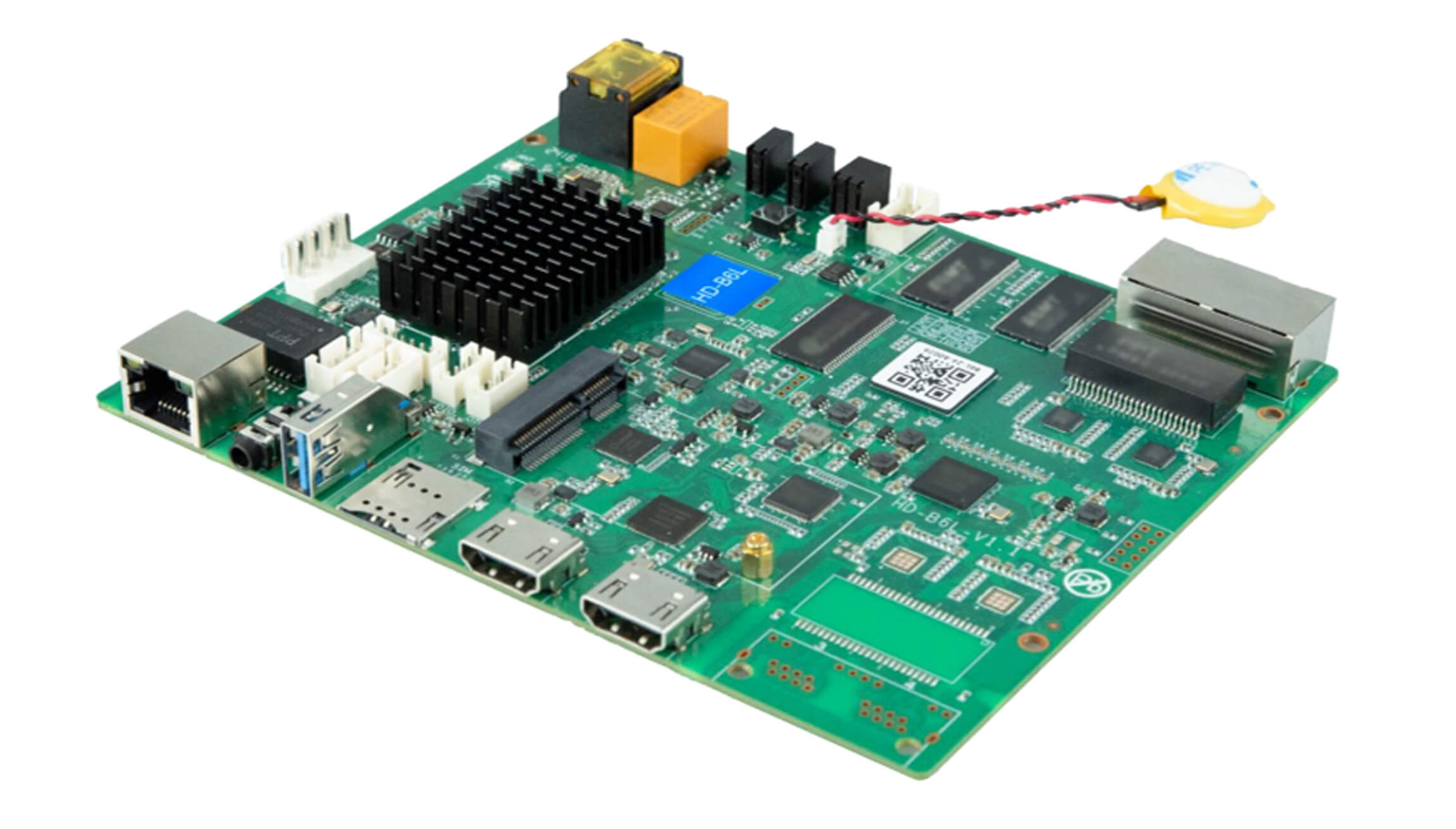
Keep the editable project and its media in the venue’s approved handover folder. Retain a recoverable copy of the previous campaign if the operating plan calls for it. The Huidu software and manuals page provides a place to locate the matching documentation. Give the operator the same project files and mode notes the installer used so the next update can be repeated without guessing from the hardware alone.
For a rollout to multiple venues, approve one representative poster first. Keep the approved export intact and associate it with the display configuration used at the test site. If a later venue uses a different screen layout or firmware, treat that unit as a separate acceptance case. Use the same visible campaign identifier but record its result against the second display. That record helps the next service team identify a transfer problem without assuming all posters received the same package.
USB update questions
Is a folder of video files the same as an exported HDPlayer program?
An exported program can include playback order, layouts and timing defined in the project. A folder of loose videos omits those project decisions. Use the approved export when the handover requires a campaign with those settings, and test the result on the actual poster.
Can I use the same USB drive to update a second poster?
For an HD-B6L USB program update on another display, first verify that its project and content match that display. Check the installed configuration and repeat copy completion and drive-removal checks on the second unit. The first successful transfer is evidence for the first unit.
Will a successful USB update prove that store staff can publish through Wi-Fi?
Test wireless publishing separately if the venue plans to use it. Huidu’s B6L manual lists USB transfer and local wireless publishing as separate methods. Ask the handover team to demonstrate the planned method with the staff workstation or phone, then record which workflow is available at the installed location.
Confirm the update workflow before specifying a poster
Compare the HD-B6L poster controller against the venue’s playback and update plan. Include the actual content package, the display configuration, and whether staff will use an HD-B6L USB program update to install the campaign before taking the drive away.
Send EagerLED your poster configuration and campaign requirements for a compatibility check. Tell us which content needs to play after drive removal and after a normal restart so those conditions can be checked on the proposed setup.