Quick answer: Use this Linsn LEDStudio RCG file download to restore or configure compatible LED display receiving cards. The archive contains settings for 87 LED module models. Match the complete module model before loading a file, back up the current receiving-card parameters, and test one cabinet before applying the configuration to the entire screen.
Linsn LEDStudio RCG File Download
Download the Linsn LEDStudio RCG file archive (.RAR)
Password notice: The archive is password-protected. After downloading it, email support@ledcontrollercard.com to request the extraction password.
If you also need the control software, installation package, or user manual, visit the Linsn LEDStudio software and manual download page.
What Is a Linsn RCG File?
An RCG file stores receiving-card configuration parameters used by Linsn LEDStudio. These parameters can include LED module dimensions, scan mode, data-group mapping, color order, and other driver settings. Loading the correct RCG file helps the receiving card display the module correctly. For manufacturer information, visit the Linsn Technology official website.
An RCG file is not a universal firmware update. It must match the LED module hardware and wiring. A file for a similar-looking module may still use a different scan method, driver IC, or HUB mapping.
Before You Load a Configuration File
Before using this Linsn LEDStudio RCG file download, confirm the following:
- Confirm the complete model code printed on the LED module or its label.
- Back up the current receiving-card configuration in LEDStudio.
- Use a stable data and power connection while sending parameters.
- Test the file on one receiving card or one cabinet first.
- Do not continue if the image is scrambled, shifted, dim, color-inverted, or blank.
How to Use an RCG File in LEDStudio
- Download the archive and extract the matching RCG file.
- Open Linsn LEDStudio and connect to the LED display control system.
- Save a backup of the existing receiving-card parameters.
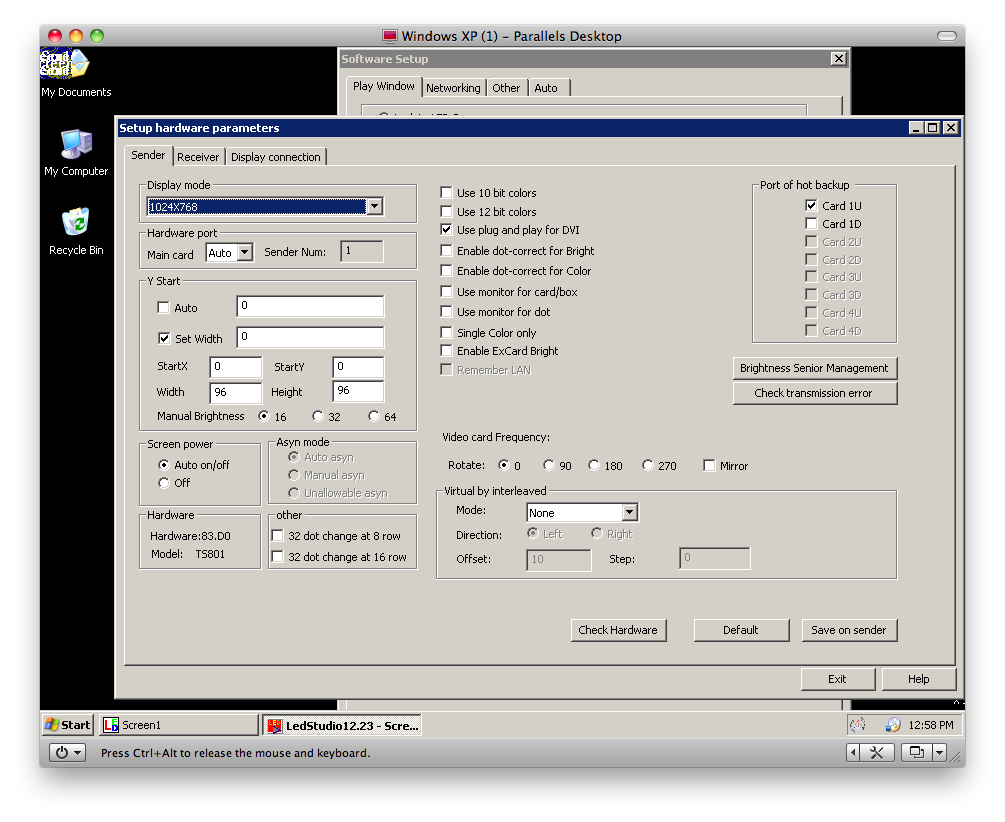
- Open the receiving-card configuration area and load the selected RCG file.
- Send the parameters to one test cabinet and check the test pattern, colors, scan direction, and module boundaries.
- Apply the configuration to the remaining receiving cards only after the test cabinet displays correctly.
- Save the verified parameters to the receiving cards so the configuration remains after restart.
Important: Menu names can vary by LEDStudio version. If you are unsure which model or file is correct, contact the LED module supplier before writing new parameters.
Compatible LED Module Models
The archive includes configuration files for the 87 model codes listed below. Use the full model code, including pitch, scan type, LED package, matrix size, and revision suffix. A partial match is not enough.
| Supported module model | Supported module model |
|---|---|
| P10U4L-RGB32X32-Y1212-SWH | P10U4L-RGB32X32-J1216 |
| P10U4L36-RGB32X32-JN-J1401 | P16U1L-RGB20X20-J1212 |
| P16U2S-3535RGB16X8A-Y1502 | P16U2L-KC20X20-J1210 |
| P10U4L-RGB32X32-J1013 | P10U4L-RGB32X32(PR5055)-X1302 |
| P16U1L-RGB30X10-X1402-ZK | P10U2S-3435RGB32X32-X1217 |
| P10U4L-RGB32X32(PR5055)-X1305 | P16U1L-RGB20X20-X1304-SWH |
| P13.33U2L36-RGB12X36-X1302-ZK | P10QU4L-RGB32X32-J1210-SWH |
| P10U4L36-RGB32X32-JN-J1402 | P10U4L-RGB32X32-J1032 |
| P16U1L-RGB8X16-Y1005 | P10U4L-RGB16X16-DB-13A |
| P13.33U2L-RGB24X24-J1401 | P16U1L-RGB8X32-X1205-ZK |
| P16U1L-RGB20X20-Y1304-SWH | P10I4S-3528RGB32X32-X1208 |
| P10U4L-RGB32X32-X1304 | P10DU4L-RGB32X32-J1216 |
| P10RGB-4S-QD-75-13A | P10U4L-KSD32X32-SRY-J1303 |
| P13.33U2L-RGB24X24-S1201 | P16U1L-RGB20X20-J1207 |
| P10I4S-3528RGB32X32-X1202 | P10QU4L-RGB32X32-J1032 |
| P10U2S-5050RGB32X32-S1203-ZS | P12QU2L-2RGB16X16-Y1007 |
| P16U2L.20×20.QFN | P12.5I4S-3528RGB16X24-X1202-ZK |
| P10QU4L-RGB32X32-J1215 | P10(16X16 RGB)SY-4S0901 |
| P10U4L-RGB32X32-J1030QFN | P16U1L-RGB20X20-X1034-SWH |
| P16U1L-(8X16 RGB)SY-0916 | P12I8S-3528RGB32X32-1203-CM |
| P10QU4L-RGB16X16-Q1213 | P21.33U1L-RGB6X24-X1501-ZK |
| P20U1L-RGB16X16-J1208 | P21.33U1L-RGB6X24-X1201-ZK |
| P20U1L-RGB16X16-1203-SWH | P20U1L-RGB16X16-Y1204-SWH |
| P20U1L-RGB16X16-J1014 | P3.33I16S-2020RGB96X96-J1403 |
| P3(2121)-64X64-16S-75-14B | P3.91I16S-RGB64X64-Q1304 |
| HX-P3(2121)64X32-16S-V3 | P31.25I1S-RGB16X8-Y1009 |
| P4I16S-2020RGB80X80-J1403 | P4I16S-2020RGB32X32-Y1201 |
| P4I12S-2020RGB60X60-Q1206 | P5I16S-3528RGB64X64-J1306 |
| P5.926I9S-3528RGB54X54-J1303 | P5I16S-RGB64X64-S1305 |
| P5U8S-2727RGB64X64-J1402 | P5.33 60-60 IC5020 HUB54-V2.0 |
| P5I16S-RGB64X64-S1302 | P5.926U6S-KC54X54-J1203 |
| P5I16S-RGB64X64-S1304 | P5I16S-RGB64x64-S1303 |
| P5I16S-RGB48X48-Q1203 | P5I16S-3528RGB64X64-S1204 |
| P5I16S-RGB64X64-S1201 | P6I9S-3528RGB54X54-J1304 |
| P6U6S-2828RGB54X54-J1402 | P6.67I8S-3528RGB48X48-X1401 |
| P6.67U8L-146RGB48X48-Y1304 | P6.67U6S-RGB48X48-3535-X1207 |
| P6I8S-3528RGB16X32-X1202 | P6I8S-3528RGB16X32-X1202 |
| 6.67I8S-3528RGB48X48-X1201 | P6I8S-RGB16X32-X1009 |
| P6.67U6S-3535RGB48X48-X1203 | P7.62-8S-RGB16X32-Y1203 |
| P8DU8L-246RGB40X40-Y1203 | P8U4S-3535RGB40X40-J1501 |
| P8U4S-3535RGB40X40-S1402 | P8U4S-3535RGB40X40-Y1302-SWH |
| P8U5L-KS40X40-SRY-J1305 | P8U4S-3535RGB40X40-X1304 |
| P8I5S-3528RGB40X40-S1202 | P8QU8L-246RGB16X32-Y1207 |
| P8U5S-3528RGB40X40-S1205 |
Troubleshooting
The LED screen becomes scrambled after loading the file
Stop before sending the configuration to additional receiving cards. Restore the backup, then verify the scan mode, module resolution, data-group mapping, driver IC, and HUB connection.
The colors or module order are incorrect
The selected file may use a different RGB order, scan direction, or cable mapping. Restore the original parameters and confirm the exact module revision with the supplier.
The module model is not in the list
Do not use the nearest-looking model as a substitute. Request the original RCG or CON file from the LED display manufacturer or module supplier. For an EAGERLED display, contact support@ledcontrollercard.com with the order information and clear photos of the module label.
Frequently Asked Questions
Is the Linsn LEDStudio RCG file download compatible with every module?
No. The configuration must match the module resolution, scan method, driver IC, data mapping, and hardware revision.
What is the difference between an RCG file and a CON file?
An RCG file contains receiving-card parameters. A CON file generally stores a broader LED screen connection or system configuration. Their exact contents and import workflow can vary by LEDStudio version.
Should I back up the current configuration first?
Yes. A backup gives you a known working configuration to restore if the selected file does not match the hardware.
Where can I get Linsn LEDStudio?
Use the linked LEDStudio software, LedSet, and manual download page for related Linsn resources.
Can support identify the correct file for me?
Support can check the information you provide, but identification is more reliable when you include the complete module model, receiving-card model, LEDStudio version, cabinet resolution, and clear photos of the module label and HUB connection.
Need Help?
For help with the Linsn LEDStudio RCG file download, email support@ledcontrollercard.com. Include the full LED module model and a photo of its label so the team can respond more accurately.