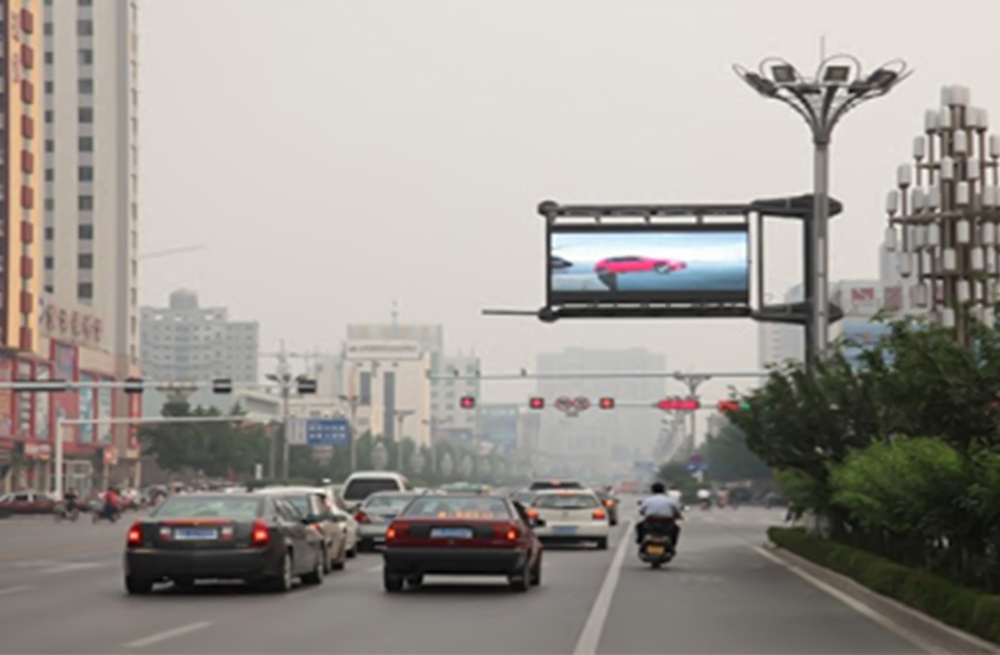
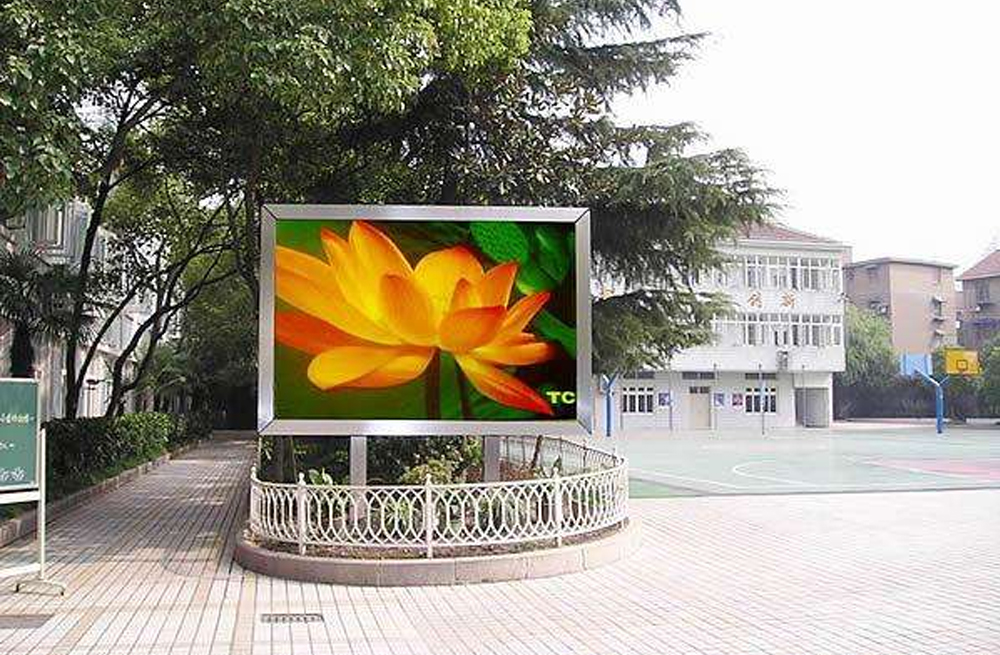
An LED sign controller card is the control center of a digital sign. It receives or stores content, converts that content into display data, and tells the LED modules what to show, when to show it, and how bright it should be. By centralizing these tasks, the card makes it easier to publish text, images, animations, time, temperature, notices, and advertising without adjusting every LED module separately.
This guide explains how an LED sign controller card works, which functions simplify daily operation, and how to choose a suitable card for indoor or outdoor LED signage.
What Is an LED Sign Controller Card?
An LED sign controller card is an electronic device that manages the content and operating parameters of an LED display. Depending on the system, it can work as a sending card, receiving card, or all-in-one asynchronous controller.
- Sending cards process a video signal and distribute display data to receiving cards.
- Receiving cards decode that data and drive the connected LED modules inside each cabinet.
- Asynchronous control cards store programs locally and play them on a schedule without a computer remaining connected.
For a simple shop sign or information board, an asynchronous card is often the easiest option. For a large full-color video wall, a synchronous system with sending and receiving cards usually provides greater bandwidth and control.
How Does an LED Sign Controller Card Work?
The controller sits between the content source and the LED modules. Its basic workflow is straightforward:
- Create the program. Use the manufacturer’s software or cloud platform to arrange text, images, video, clocks, counters, or sensor data.
- Send the content. Transfer the program by Ethernet, Wi-Fi, USB drive, 4G, or another connection supported by the card.
- Process the data. The controller converts the program into signals that match the screen resolution, scan type, color mode, and module layout.
- Drive the display. Receiving hardware sends the correct color and brightness data to every pixel.
- Run the schedule. The sign plays content at the selected time and can repeat, switch programs, or adjust brightness automatically.
This process removes many repetitive tasks. Once the screen parameters are configured correctly, an operator can update the sign without rewiring the display or manually controlling individual cabinets.
Functions That Make LED Sign Operation Easier
1. Centralized content management
A controller lets one interface manage the entire sign. Operators can combine several content zones on one canvas, such as a headline, product image, scrolling message, clock, and weather or sensor information. Templates also make recurring updates faster and more consistent.
2. Scheduled playback
Many asynchronous controllers can store multiple programs and play them according to a calendar. A retail sign can show opening-hour messages in the morning, promotions during the day, and closing notices in the evening. Because the content is stored on the controller, playback can continue even when the editing computer is offline.
3. Multiple update methods
Supported connection methods vary by model, but common options include Ethernet, Wi-Fi, USB, and cellular networks. A local USB update is useful when network access is unavailable. Remote network control is better for operators who manage signs at several locations.
4. Screen parameter control
The card stores important display settings such as width, height, module arrangement, scan mode, refresh behavior, and color configuration. Correct parameters help the modules display a complete, aligned image. Some software can also read saved parameters back from the controller, which can simplify maintenance or card replacement.
5. Brightness and power scheduling
Brightness can often be adjusted manually, by schedule, or with a compatible light sensor. Reducing brightness at night improves viewing comfort and may lower power use. Scheduled screen on/off times can also prevent unnecessary operation when a business is closed.
6. Sensor and information integration
Compatible controllers may support temperature, humidity, light, or other sensors. This allows an LED sign to show live environmental information alongside regular content. Sensor compatibility should always be checked against the exact controller model and software version.
7. Real-time monitoring and remote maintenance
Networked systems may report online status, playback progress, storage use, or hardware faults. These features help technicians identify a disconnected screen or failed component before visiting the site. The available monitoring functions depend on the controller ecosystem and any connected monitoring card.
Synchronous vs. Asynchronous LED Control
| Feature | Synchronous system | Asynchronous system |
|---|---|---|
| Content source | Live computer or video processor | Programs stored on the controller |
| Best for | Live video, events, large video walls | Signs, notices, menus, scheduled advertising |
| Internet required for playback | No, but a live source is required | No after content is stored locally |
| Typical updates | Real-time video input | Ethernet, Wi-Fi, USB, or 4G |
| Operating complexity | More components and signal planning | Simpler routine content management |
The right choice depends on the application, not simply on which system has more features. A storefront message board may benefit from a compact asynchronous LED control card, while a large live video display may require a video processor, sending hardware, and multiple LED receiving cards.
How to Choose the Right LED Sign Controller Card
Check these requirements before purchasing or replacing a controller. Always verify specifications against the manufacturer’s current manual and software. For example, NovaStar publishes controller software and documentation in its official download center.
- Screen type: Confirm whether the display is single-color, dual-color, or full-color.
- Pixel capacity: The card must support the total pixel width and height of the sign.
- Module interface and scan mode: Verify HUB compatibility, data groups, scan type, and cabinet wiring.
- Content type: Text-only signs need less processing power than displays playing full-color video.
- Control method: Decide whether updates will use USB, Wi-Fi, Ethernet, 4G, or a cloud platform.
- Playback mode: Choose synchronous control for a live source or asynchronous control for stored programs.
- Environmental needs: Outdoor installations may require automatic brightness control, reliable remote access, and protected enclosures.
- Software and support: Confirm that compatible software, firmware, setup files, and technical documentation are available.
Do not select a card by physical size alone. Two cards that look similar can support different pixel loads, interfaces, and software. Match the controller specification to the LED modules and the complete screen design.
Typical Setup Process
- Record the LED module model, resolution, scan mode, and HUB interface.
- Calculate the total screen resolution and confirm it is within the controller’s loading capacity.
- Connect power, data cables, and network or communication cables according to the manufacturer’s wiring diagram.
- Install the correct control software and select the matching controller model.
- Configure screen width, height, module cascade direction, color order, and scan parameters.
- Send a test pattern and check for missing rows, reversed colors, ghosting, or misplaced cabinets.
- Create the final program, set schedules and brightness, then send it to the controller.
- Save a backup of the working configuration for future maintenance.
If you use a separate sending card and enclosure, see our guide to installing an LED sending card in an external sender box. For a controller-led sign, you can also browse available LISTEN LED sign controller card options.
Common Problems and Quick Checks
The screen is blank
Check power, data-cable direction, controller status lights, software connection, and whether the correct program was sent. Also confirm that the display is not inside a scheduled off period.
The image is scrambled or divided
Incorrect screen width, module cascade direction, scan mode, or receiving-card mapping is a common cause. Reload a known-good configuration and test one cabinet or module group at a time.
Colors are wrong
Verify RGB color order, module type, data polarity, and configuration files. A red test pattern that appears blue or green usually indicates a color-order mismatch.
Remote updates fail
Confirm that the card is online, the network settings are correct, and the software supports the selected remote method. For cellular control, also check the SIM plan, signal strength, and platform authorization.
Frequently Asked Questions
What does an LED sign controller card do?
It receives or stores content, converts it into LED display data, and controls how the sign presents text, images, video, timing, and brightness.
Can an LED sign work without a computer?
Yes. An asynchronous controller stores content locally, so the sign can continue playing after the computer or phone used for setup disconnects.
Can one controller manage several LED signs?
Sometimes. The controller must have enough pixel capacity and supported outputs, and the software must allow the intended screen layout. Multiple remote signs may also be managed through a compatible cloud platform.
Is a receiving card the same as a controller card?
Not always. A receiving card drives LED modules inside a cabinet, while the main controller or sending card processes and distributes content. Some compact products combine several functions in one device.
How do I know which controller is compatible with my LED modules?
Compare the module interface, scan type, color mode, total resolution, communication method, software, and power requirements. When any parameter is uncertain, provide the module and screen specifications to the supplier before ordering.
Conclusion
An LED sign controller card makes operation easier by bringing content delivery, scheduling, display parameters, brightness, and remote management into one system. The best card is the one that matches the screen resolution, module interface, playback mode, and update method. Careful specification checks and a saved working configuration reduce setup time and make future maintenance much simpler.