Quick answer: In LINSN LEDStudio V12.63, V12.64 and V12.65, the old installation serial number 888888 is not required. Display Configuration, Intelligent Setup, Display Connection, Hardware Setting and Software Setup open without a password. The password 168 is used for User Setup.
Last reviewed: August 31, 2026. This guide documents the LEDStudio 12.x interface shown in the original screenshots. Menu names and login behavior may differ in other LINSN software.
LEDStudio password and serial number at a glance
| LEDStudio task or menu | Is a code required? | Code to use |
|---|---|---|
| Install LEDStudio V12.63-V12.65 | No installation serial is required | None |
| Display Configuration, Intelligent Setup and Display Connection | No password is required | None |
| Hardware Setting | No password is required | None |
| Software Setup | No password is required | None |
| User Setup | Yes | 168 |
| Older LEDStudio installer that asks for a serial number | May require the legacy installation serial | 888888 |
Do you need serial number 888888 for LEDStudio 12?
LEDStudio V12.63, V12.64 and V12.65 no longer require the old 888888 serial number during installation. The number 888888 belongs to older LEDStudio installation prompts. It is not the User Setup password.
If you are installing the version covered by this guide, continue without entering a serial number. If an older installer explicitly displays a serial-number field, use 888888 only in that installation field.
You can download the documented package from the LINSN LEDStudio V12.65 download link. Confirm that LEDStudio 12.x supports your controller before changing screen parameters.
Which LEDStudio settings require a password?
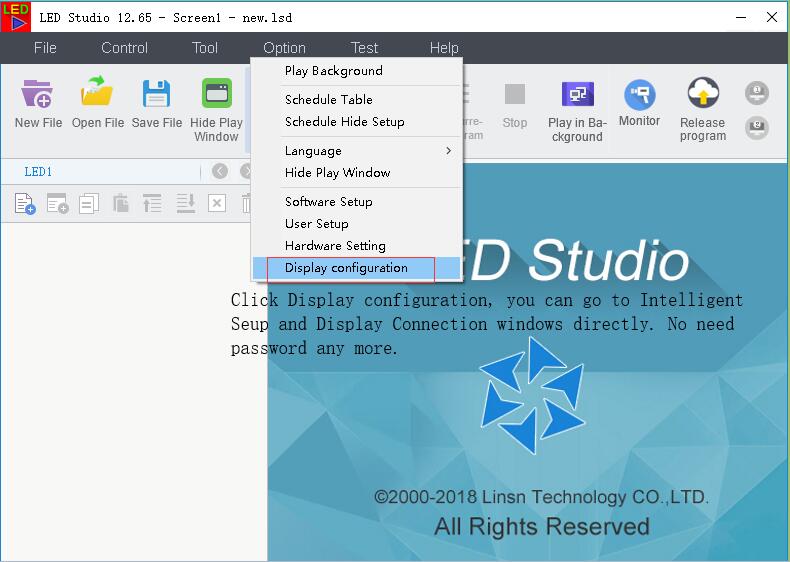
Display Configuration, Intelligent Setup and Display Connection
These menus do not require a password in the LEDStudio versions covered here. Open Display Configuration, then continue to Intelligent Setup or Display Connection as needed.
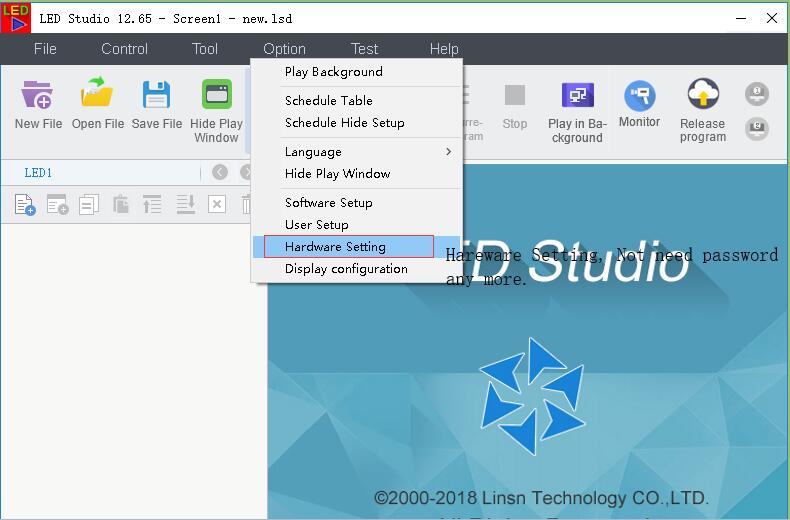
Hardware Setting
Hardware Setting opens without a password in LEDStudio V12.63-V12.65. Do not enter 168 or 888888 unless the software shows a clearly labeled User Setup or serial-number field.
Software Setup
Software Setup also opens without a password in the documented LEDStudio 12.x interface. This is separate from User Setup, which has its own login.
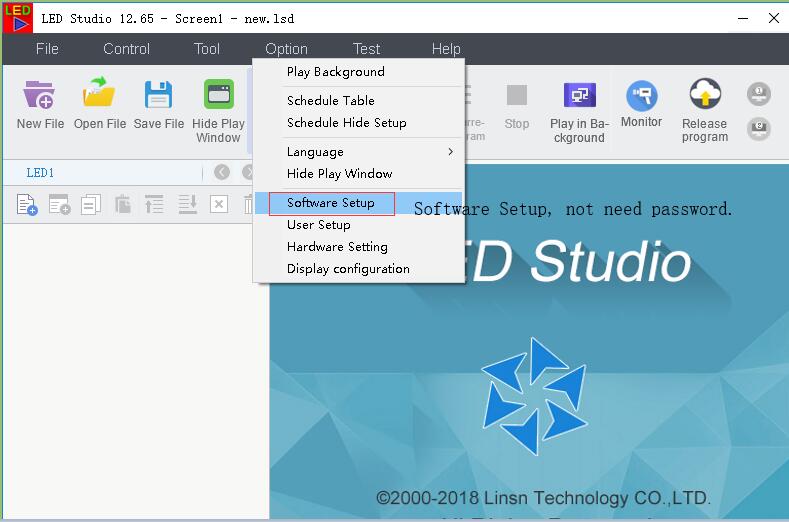
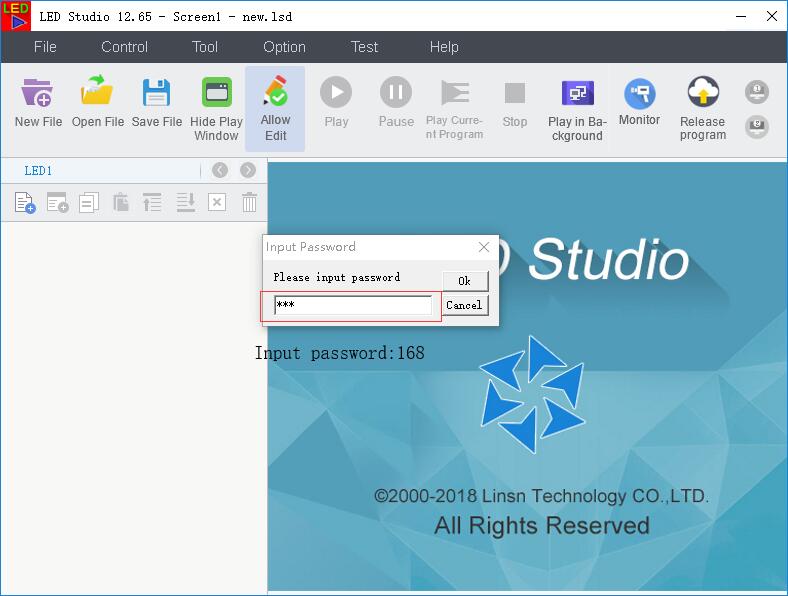
User Setup password: 168
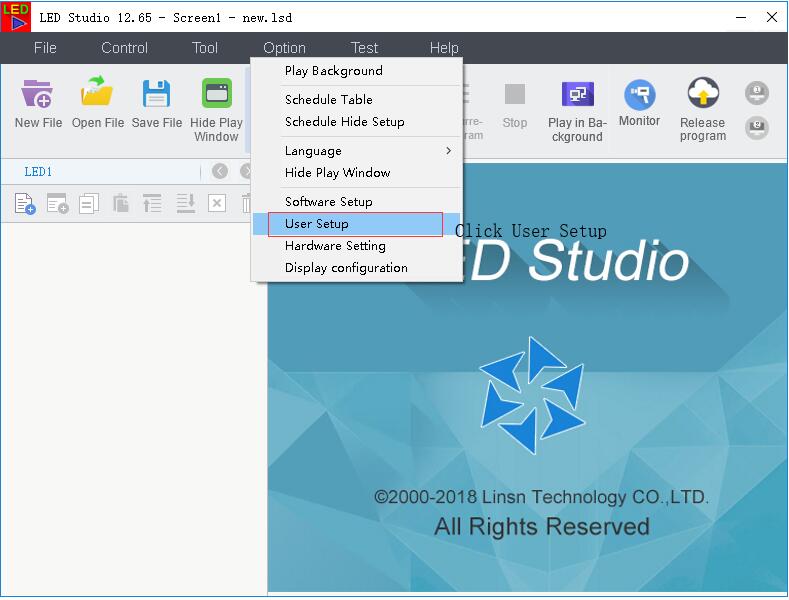
User Setup is the menu that requires a password. Enter 168 exactly, using numerals only and without spaces. The following screenshots show the User Setup prompt and the screen available after login.
If LEDStudio says the password is invalid
First, check which field is asking for a code. The legacy serial number and the User Setup password are different credentials.
- Confirm the menu. Use 168 only for User Setup. Display Configuration, Hardware Setting and Software Setup should not need it in V12.63-V12.65.
- Confirm the version. This guide applies to LEDStudio V12.63, V12.64 and V12.65. A different LINSN program or a customized build may behave differently.
- Enter digits only. Type 168 without spaces, punctuation or copied formatting.
- Restart LEDStudio. Close the program, reopen it and return to the same menu before trying again.
- Check the installer source. If the interface does not match these screenshots, obtain the correct package for your LINSN controller.
If an older installer asks for a serial number, enter 888888 in the installation serial field. Do not use 888888 as the User Setup password.
How to use User Setup safely
- Open LEDStudio and confirm the installed version.
- Open the menu that contains User Setup.
- Select User Setup and enter 168.
- Review the current screen and controller settings before making changes.
- Back up the working LED display configuration before changing receiver-card mapping, scan settings or cabinet connections.
A wrong configuration can affect how the LED screen displays content even when the password is correct. Record the controller model and current parameters before troubleshooting.
LEDStudio download and LINSN resources
- Download LINSN LEDStudio V12.65
- View LINSN LEDStudio software and manual downloads
- Browse LINSN LED controllers and accessories
Use the software package that matches your sending card, receiving card and Windows environment. This article documents LEDStudio 12.x; it does not claim that V12.65 is the newest software available for every LINSN product.
Frequently asked questions
What is the default LEDStudio password?
The User Setup password is 168 in the LEDStudio V12.63-V12.65 interface documented here. The other settings shown in this guide do not require a password.
What is the LEDStudio serial number?
Older LEDStudio installers may request the serial number 888888. LEDStudio V12.63-V12.65 does not require that installation serial.
Does LEDStudio Hardware Setting need a password?
No. Hardware Setting opens without a password in the versions covered by this guide.
Why does password 168 not work?
You may be using a different menu, version or LINSN application. Verify that the prompt is for User Setup and that your interface matches the screenshots above. Then type 168 manually without spaces.
Is LEDStudio V12.65 the newest LINSN software?
This guide covers V12.63-V12.65 and does not label V12.65 as the newest release. LINSN software changes over time, so verify the recommended package for your specific controller.
Need help with a LINSN control system?
When requesting support, include your LEDStudio version, Windows version, LINSN controller model, the exact menu name and the full error message. You can browse our LINSN product range or email [email protected].