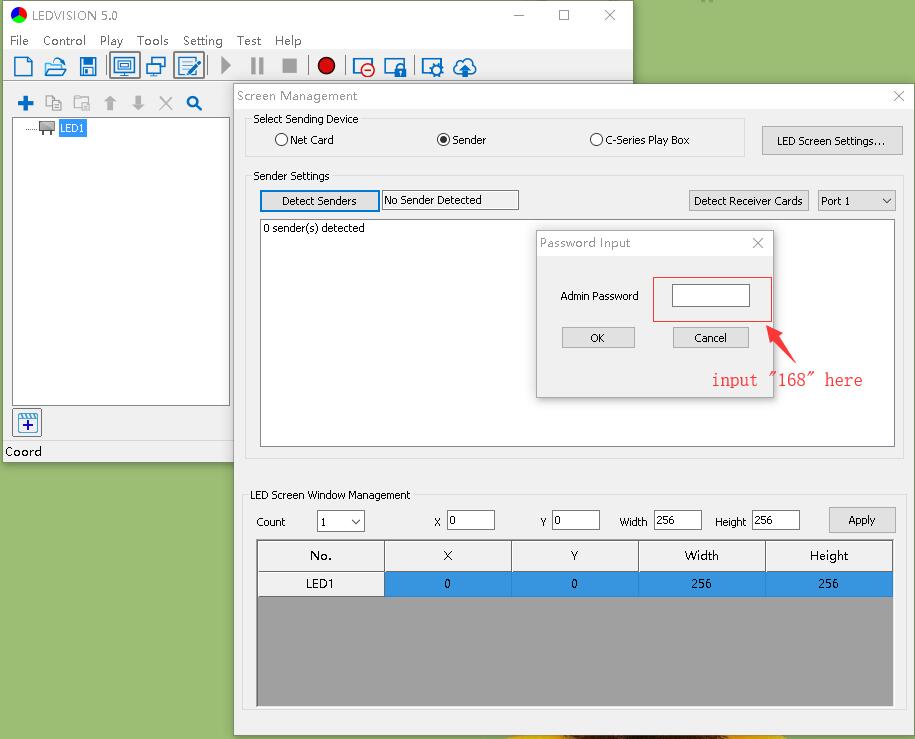
Quick answer: The LEDVISION default password is 168. Enter the three digits only, with no quotation marks or spaces. LEDVISION asks for this password when you open LED Screen Settings.
If you searched for “LEDVision password,” “LEDVision default password,” or “Colorlight password,” this guide covers the admin prompt shown in the screenshots below. It is not a Wi-Fi password, Colorlight Cloud login, PlayerMaster password, LEDArt password, or device account password.
What Is the Colorlight LEDVision Default Password?
| Software | Access prompt | Default password |
|---|---|---|
| Colorlight LEDVISION | Admin Password for LED Screen Settings | 168 |
The answer is 168 for the classic Colorlight LEDVISION admin dialog illustrated on this page. Interface labels can vary by software version. Newer Colorlight packages may separate playback functions in LEDVISION from screen configuration in LEDSetting, so first confirm that you are using the application and prompt described here.
How to Enter the LEDVISION Default Password
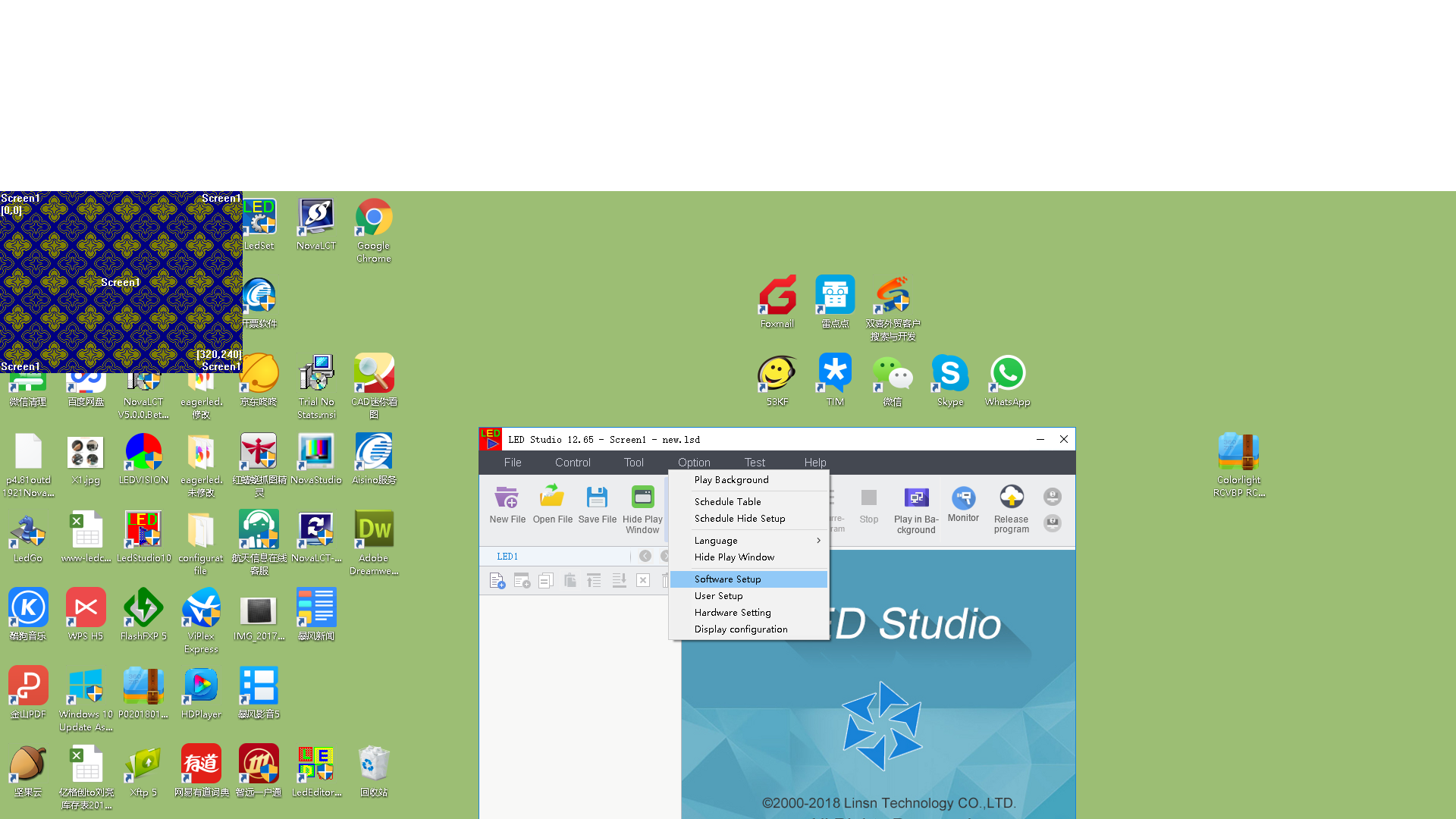
- Launch Colorlight LEDVISION. Open the screen-control area in the software interface.
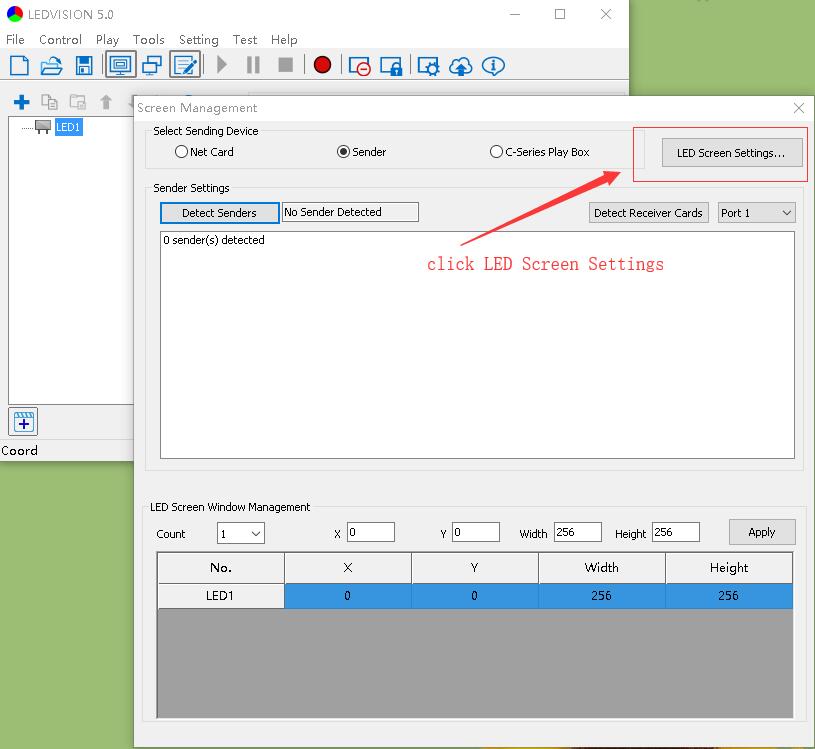
- Select LED Screen Settings. In the Screen Management window, click the LED Screen Settings button.
- Enter 168. When the Admin Password dialog appears, type 168 and click OK.
What Does the LEDVISION Admin Password Control?
The admin password protects access to LED screen configuration functions. These settings can affect sender and receiver-card parameters, screen mapping, cabinet layout, and display output. Save or export a working configuration before changing screen parameters, especially on a live LED display.
The password 168 does not automatically unlock other Colorlight products or services. Colorlight Cloud accounts, Wi-Fi controllers, media players, LEDArt, PlayerMaster, and third-party control software can use different credentials.
What If the LEDVISION Default Password 168 Does Not Work?
- Check the software and dialog. Confirm that you are in Colorlight LEDVISION and that the window says Admin Password for LED Screen Settings.
- Enter digits only. Type 168 without quotation marks, spaces, or leading zeros.
- Check for a custom password. An installer or system administrator may have changed the default credential. Ask the person who commissioned the LED display.
- Check your version. In newer Colorlight releases, screen setup may be handled by LEDSetting rather than the classic LEDVISION interface shown here.
- Avoid random configuration changes. Back up the working receiver-card and screen parameters before editing them.
Colorlight Software and Related Resources
- Use the official Colorlight download center for current software, firmware, documents, and manuals.
- See our Colorlight RCVP and RCVBP file guide for LEDVISION configuration resources.
- Browse more ColorLight controllers, software guides, and support articles.
Frequently Asked Questions
Is the LEDVision default password 168?
Yes. For the classic Colorlight LEDVISION Admin Password prompt shown in this guide, the default password is 168.
Should I type quotation marks around 168?
No. Enter only the digits 168.
Is 168 the Colorlight Wi-Fi or cloud password?
No. It is the default admin password for the LED Screen Settings prompt in the LEDVISION interface shown above. Wi-Fi devices and cloud accounts can use different credentials.
Why is LEDVISION rejecting 168?
You may be using a different Colorlight application, a newer interface, or a system with a custom password. Confirm the software version and contact the installer or display administrator instead of resetting a working configuration.
Last reviewed: August 2026. Menu names and password behavior may vary by Colorlight software version.
Need help identifying the correct Colorlight software or controller? Contact EagerLED with your software version, controller model, and a screenshot of the prompt.