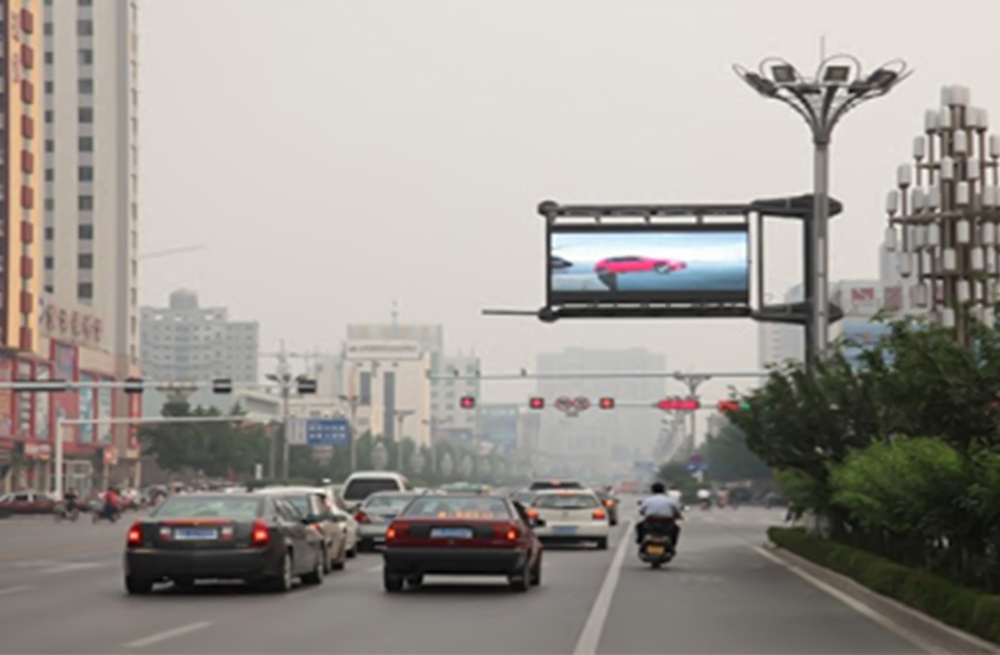
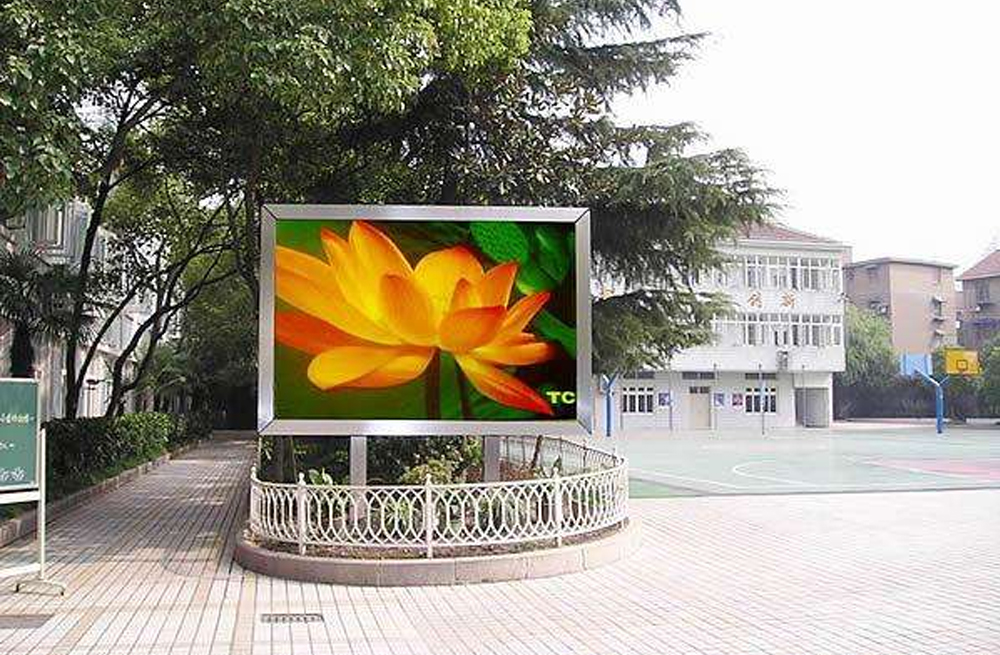
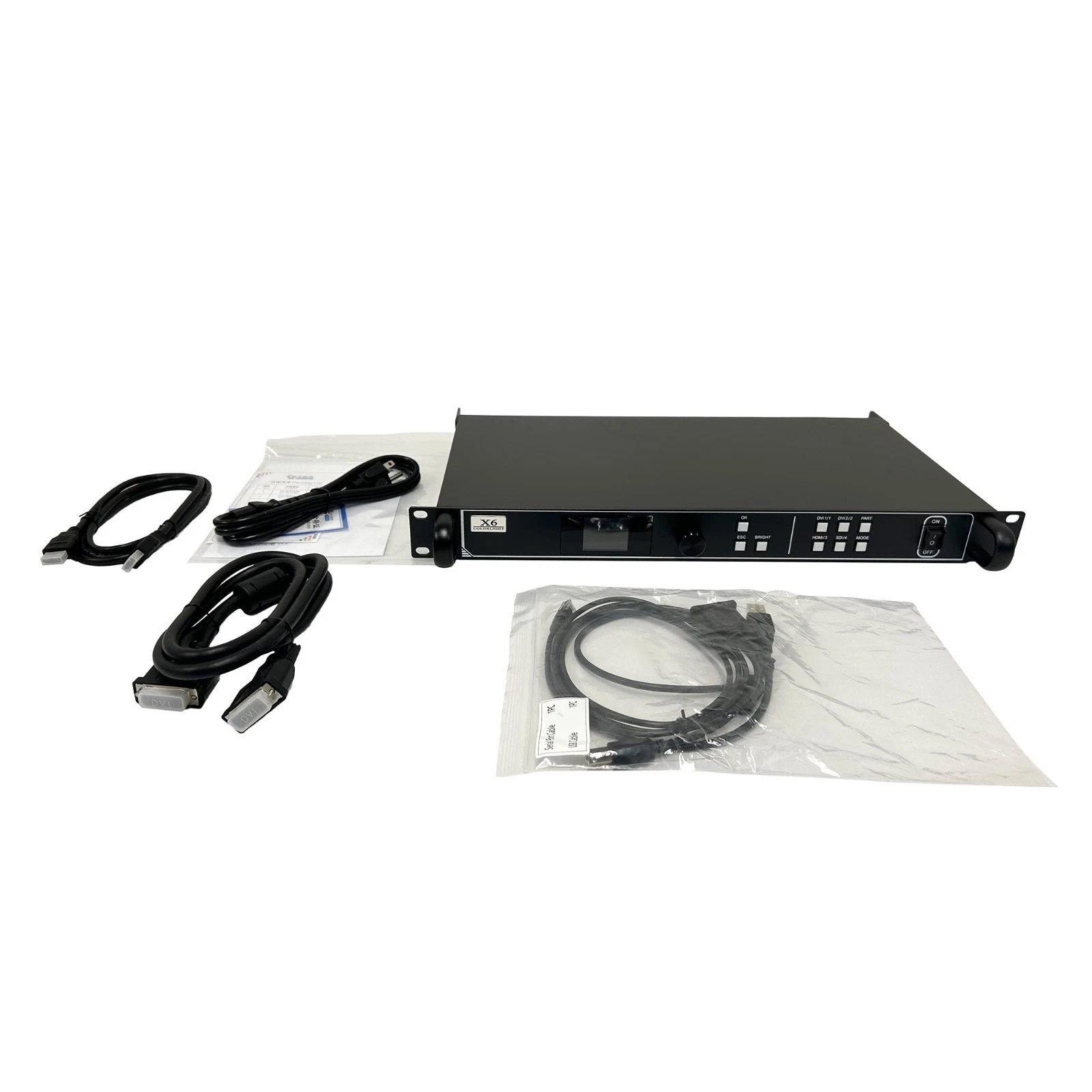
The Colorlight X6 controller is an LED video processor and sender with HDMI, DVI and SDI inputs, six Gigabit Ethernet outputs and a specified maximum load of 3.9 million pixels. It processes the source image and sends it to receiving cards in the LED cabinets. Input resolution, total pixel load, screen dimensions and individual output allocations must each be checked before installation.
This guide explains X6 connections, pixel-load calculations, setup and troubleshooting. Start with the screen’s actual pixel dimensions, receiving-card configuration and cable order. For the model overview and available documentation, see the Colorlight X6 LED video controller product page.
1. What the Colorlight X6 Controller Does
In a typical installation, a computer, media player or camera supplies video to the X6. The controller selects and processes that source, positions it within the display area and sends image data to receiving cards inside the LED cabinets. The receiving cards then drive the modules through the cabinet’s internal connections.
The X6 supports scaling and up to three picture layers with adjustable positions and sizes. This is useful when the screen’s proportions differ from the source or when several pictures must share the display. It does not remove the need for correct cabinet parameters and receiver mapping. A complete system still needs a suitable source, compatible receiving hardware, correctly configured modules and appropriate cabling.
2. Colorlight X6 Controller Ports Explained
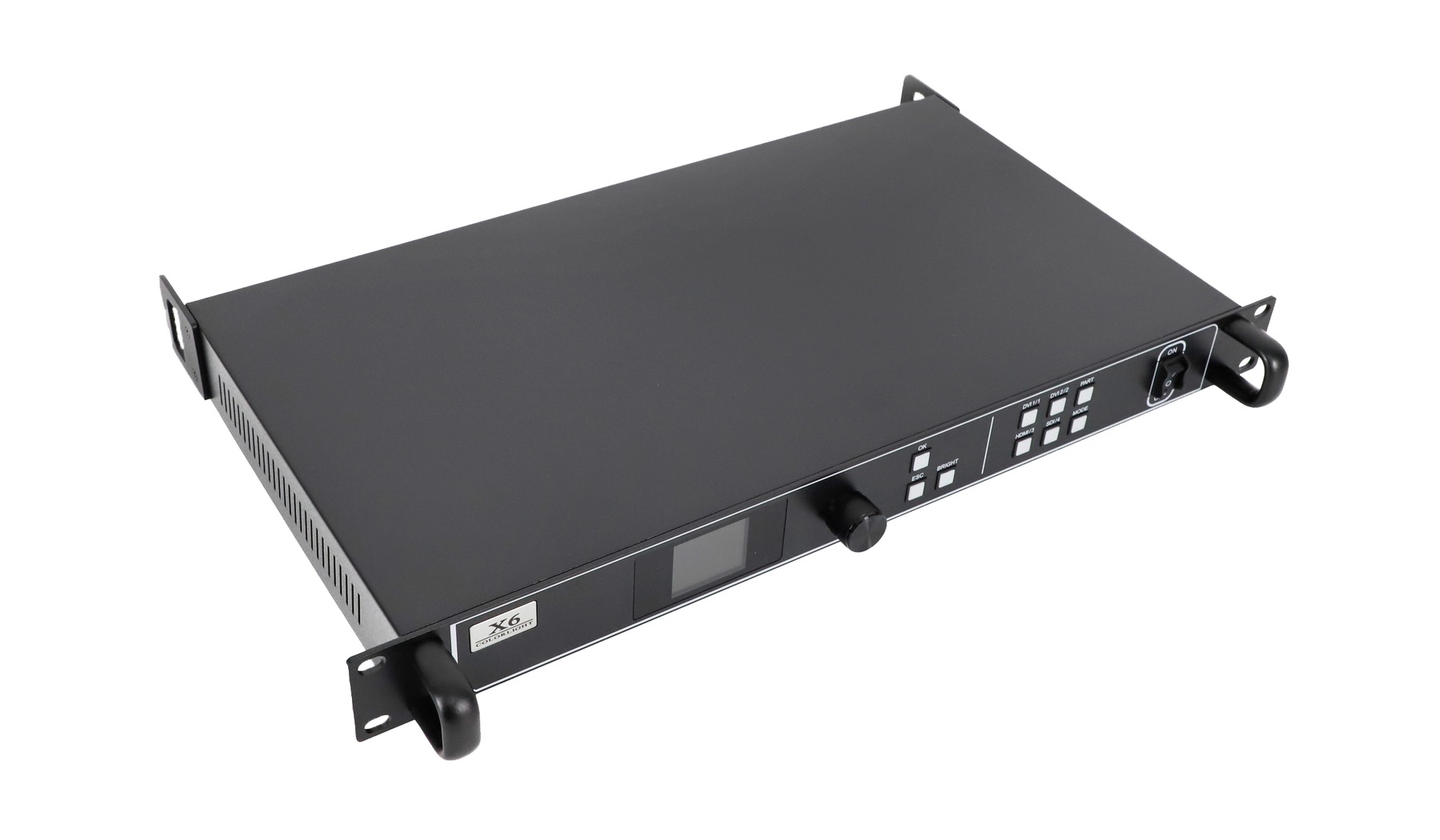
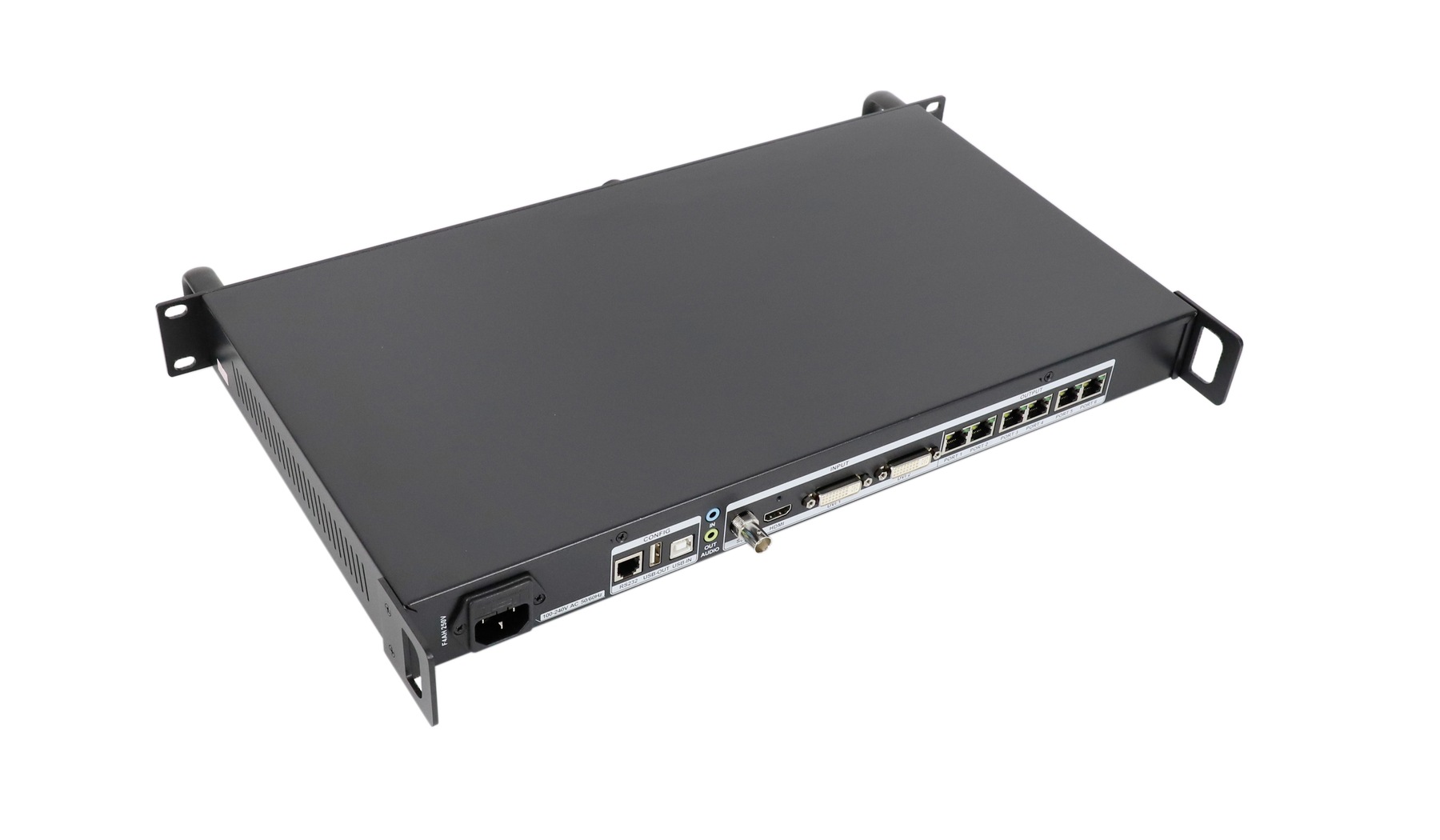
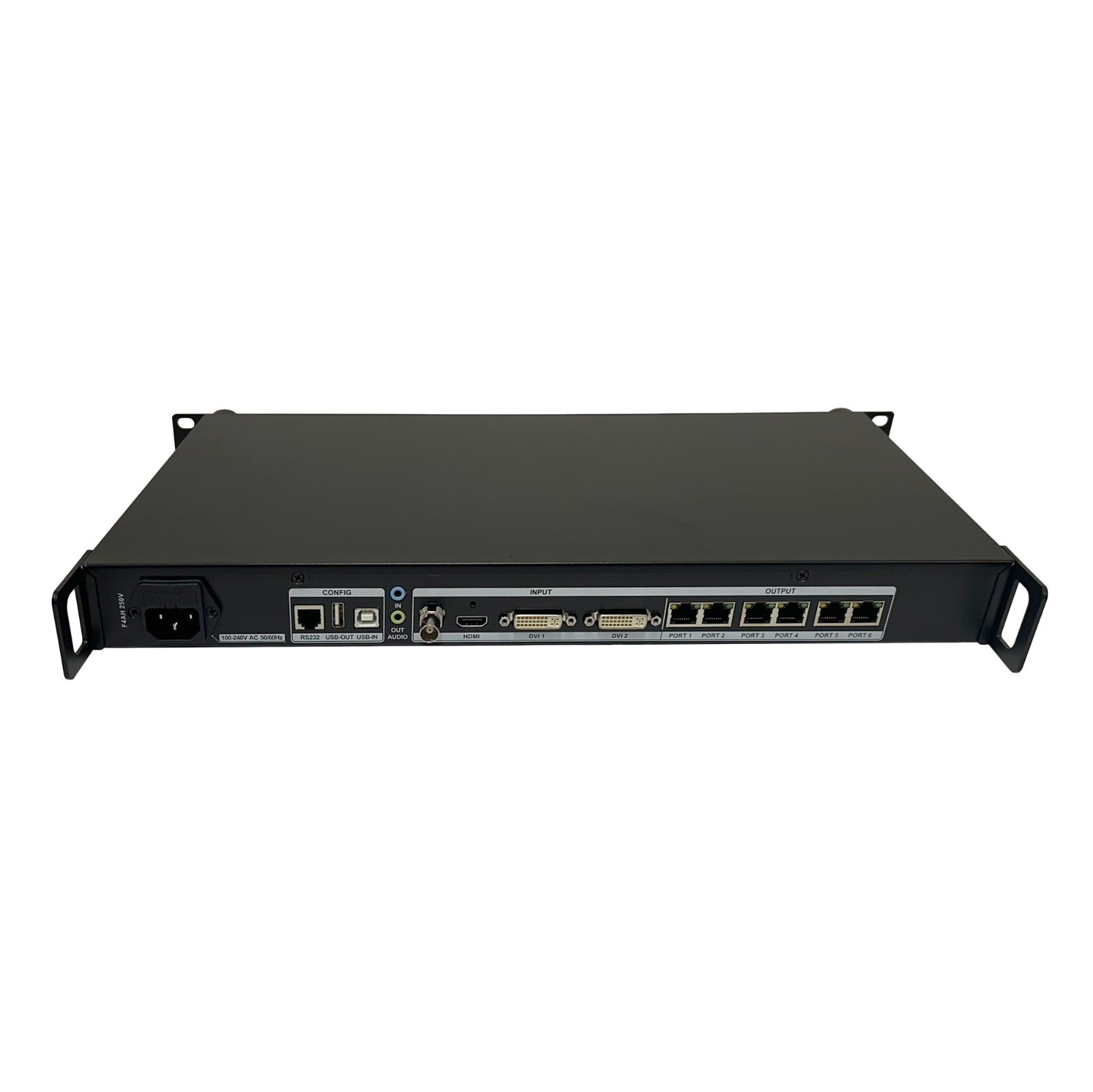
Read the rear-panel labels before connecting cables. Video inputs, configuration connections and LED outputs serve different purposes even when their connectors look familiar. The following arrangement follows the X6 V1.6 specification; check the labels and matching documentation for the unit being installed.
| Connection | Function | Practical check |
|---|---|---|
| HDMI × 1 | HDMI 1.4 video input | Set a supported source timing; the specified input ceiling is 1920 × 1200 at 60 Hz. |
| DVI 1 and DVI 2 | Two video inputs | Select the input actually connected to the source. |
| SDI × 1 | Video input supporting 3G-SDI | Match the camera or upstream equipment to a supported SDI format. |
| PORT 1–6 | Six Gigabit Ethernet LED outputs | Connect to the planned receiving-card chains and record the port numbers. |
| USB IN / USB OUT | PC configuration / control cascading | USB IN connects to the setup computer; USB OUT continues the control connection. |
| RS232 | Third-party serial control | Use the specified RJ11 pinout and a compatible control system. |
| AUDIO IN / OUT | External audio input / audio output | V1.6 describes 3.5 mm connections and HDMI audio decoding. |
A laptop’s USB connection gives configuration access; its HDMI or DVI connection carries the picture. If both cables go to the same laptop, they still perform separate jobs. Likewise, the numbered LED outputs should not be confused with a management-network connection.
When connecting the Colorlight X6 controller to an unfamiliar source, begin with a supported conventional timing such as 1920 × 1080 at 60 Hz. Verify signal detection before adding adapters, extending the cable route or building a multi-layer layout. This keeps input problems separate from screen-mapping problems.
3. Calculate Screen Load Before You Connect
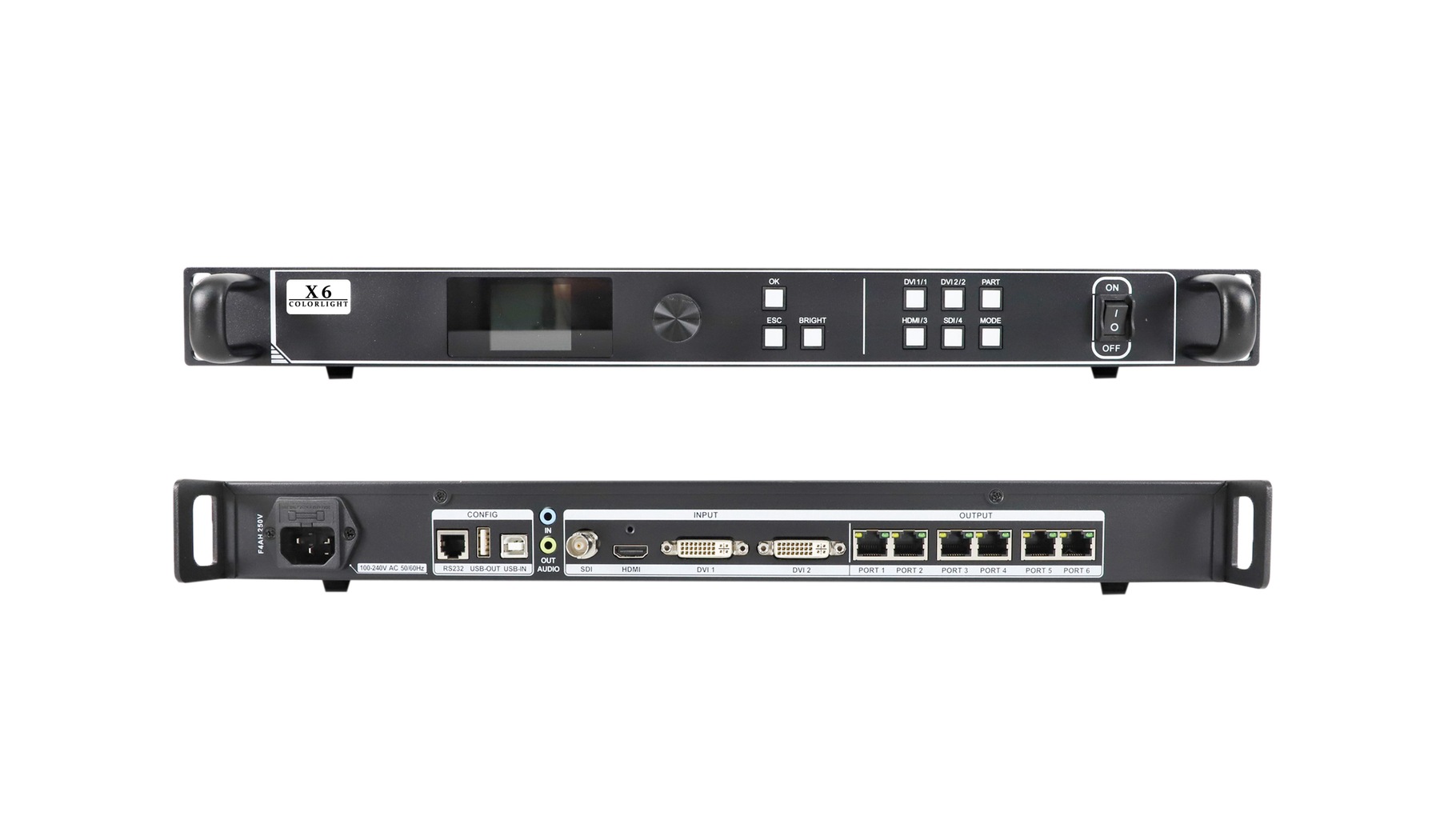
For the Colorlight X6 controller, the published limits are up to 3.9 million output pixels, a maximum screen width of 8192 pixels and a maximum screen height of 4096 pixels. These are simultaneous design constraints, not permission to drive an 8192 × 4096 canvas. That rectangle contains 33,554,432 pixels, far above the total-load rating.
Calculate screen pixels as width × height. Use the pixel dimensions of the modules or cabinets, not their physical measurements. Pixel pitch alone cannot tell you the load unless the actual screen dimensions are also established.
| Screen pixels | Total pixels | Total-load assessment |
|---|---|---|
| 1920 × 1080 | 2,073,600 | Below 3.9 million; other limits still require checking. |
| 2304 × 1536 | 3,538,944 | Below 3.9 million; verify port and receiver allocations. |
| 2560 × 1600 | 4,096,000 | Exceeds the stated total-load rating. |
| 3840 × 2160 | 8,294,400 | Exceeds the stated total-load rating. |
For example, suppose a hypothetical wall uses 24 cabinets, each containing 384 × 384 pixels, arranged six across and four high. The wall is 2304 × 1536 pixels. Allocating one vertical column to each output gives four cabinets, or 589,824 pixels, per port.
That calculation describes a proposed distribution, not a verified installation. Check the permitted load and control area of each port, the receiving-card capacity and the operating mode before accepting it. A low total does not compensate for an overloaded individual chain. If redundancy is required, design and validate the backup arrangement separately.
Input resolution remains a separate limit. Scaling a supported source onto a wider wall does not make the X6 a native 4K-input processor, and enlarging the image does not create additional source detail.
4. Colorlight X6 Controller Setup Step by Step
(1) Record the existing system
- Before changing a working screen, export available configurations and record the sender model, hardware revision, receiving-card models, cabinet pixel dimensions and cable order.
- Keep the screen supplier’s correct cabinet parameter file.
- Do not guess scan settings or driver-IC parameters to make an unfamiliar module light up.
(2) Connect and detect the hardware
Connect the video source to the chosen input and the setup computer to USB IN. Connect each numbered LED output to its assigned first receiving card, then follow the planned cabinet chain. Confirm power and inspect plugs before troubleshooting software.
The X6/X7 V1.4 guide uses legacy LEDVISION instructions: Control > LED Screen Settings, then sender detection and receiver detection. Colorlight’s newer software family separates screen control into LEDSetting. Use a release compatible with the installed hardware; menu names can differ. Confirm that the sender and expected receivers are detected before proceeding.
(3) Select the source and set the picture area
Select HDMI, DVI 1, DVI 2 or SDI to match the connected source. Verify the reported input status. Set the picture’s position and dimensions within the intended screen area. Use aspect-ratio preservation when a stretched image would be unacceptable, or deliberate cropping when the design requires filling a different shape.
The Colorlight X6 controller also offers pixel-to-pixel output in the documented software workflow. Decide whether preserving source pixels or fitting the available display area matters more for the content. Small text and grid patterns make scaling errors easier to see than moving video.
If the computer offers an unsuitable display mode, inspect its output settings and the controller’s EDID options. EDID describes display capabilities to the source; changing it should help establish an appropriate input timing, not bypass the processor’s documented limits. After any timing change, recheck signal detection and picture geometry before adjusting the receiver map.
(4) Map receivers to the physical cable order
Apply the correct cabinet parameters, then build the receiver map for each output. The documented mapping view looks from the front of the screen. A technician working behind the cabinets must account for that viewpoint instead of copying the rear-facing layout literally.
Match each receiver’s position and pixel dimensions to the physical connection sequence. Send the mapping, check the display and save it when correct. Changing the picture size cannot repair cabinets assigned to the wrong locations.
(5) Verify and save the result
Use test patterns, cabinet boundaries and readable text to check ordering, missing areas, geometry and color consistency. Set an appropriate brightness, then inspect the intended content. Save the required screen and sender settings, export a backup and record any presets. Restart during commissioning and confirm that the saved layout returns correctly.
Keep a short handover record alongside the backup: software version, selected input, source timing, cabinet dimensions and the first cabinet on each port. Label cables to match that record. Photographing the completed connections also makes later fault isolation easier, especially when several visually identical cables enter the same rack. Update the record whenever the physical routing changes.
5. Troubleshoot a Blank or Incorrect Image
When the Colorlight X6 controller produces an unexpected result, work along the signal path. First establish whether the fault affects the whole screen, one output chain or individual cabinets. Change one variable at a time so the result identifies a useful next step.
| Symptom | First check | Next action |
|---|---|---|
| No image anywhere | Selected input and source signal status | Try a known-good cable and supported source timing. |
| One chain is dark | Assigned output, first receiver and cabinet power | Inspect the chain entrance and test its first cable. |
| Cabinets show displaced sections | Receiver map and front-view orientation | Compare software order with physical cable routing. |
| Image is stretched or cropped | Picture size, aspect ratio and crop settings | Correct the picture area before changing cabinet parameters. |
| Layout changes after restart | Whether the required configuration was saved | Save the verified settings and repeat the restart check. |
If an internal test image displays correctly while the external picture fails, focus first on source selection, timing and the input cable. If the test image is also wrong, examine the output path and screen configuration. This narrows the investigation; it is not proof that every component in the remaining path is healthy.
6. Colorlight X6 Controller FAQ
(1) What is the maximum pixel load of the Colorlight X6?
The specified maximum total load is 3.9 million pixels across six Gigabit Ethernet outputs. The maximum width is 8192 pixels and the maximum height is 4096 pixels, but these dimensions do not define a supported 8192 × 4096 canvas. Check total pixels, each output allocation and receiving-card limits together.
(2) Does the Colorlight X6 support a 4K input or a full 4K LED screen?
The documented maximum input resolution is 1920 × 1200 at 60 Hz. A full 3840 × 2160 LED screen contains 8,294,400 pixels, exceeding the X6’s 3.9-million-pixel total load. Scaling a supported input to a different screen shape does not add native 4K input support or increase the output capacity.
(3) Can the Colorlight X6 controller play video directly from a USB flash drive?
The documented USB ports are for configuration and cascading control. USB OUT is not listed as a standalone media-playback input. Use an external player or computer connected to a supported video input when you need scheduled or continuous content playback.
(4) Can I use receiving cards from another brand?
Do not assume compatibility from the RJ45 connector. Receiver protocol, firmware and cabinet configuration must match the sending system. The X6 documentation identifies Colorlight receiving hardware; confirm the exact card and firmware combination before replacing an existing system or mixing equipment.
(5) Will the screen keep playing after I disconnect the setup computer?
It can continue using another connected video source once the required settings are saved. However, if the setup computer also supplies the picture through HDMI or DVI, disconnecting that video connection removes the source. Configuration control and video playback are separate roles.
(6) Can I copy a configuration to a replacement X6?
The documented software supports importing and exporting sender parameters. Check hardware and firmware compatibility, cabinet parameters, receiver mapping and cable assignments before using a backup. Validate the replacement on the actual screen; a matching model name alone does not prove every setting transfers correctly.
(7) Can I route the LED outputs through an ordinary network switch?
Use the documented direct connection to receiving cards unless Colorlight confirms a specific alternative topology. A Gigabit Ethernet connector does not establish compatibility with a general office network. For longer or more complex transport, verify supported equipment and the complete connection scheme.
(8) What should I check before updating Colorlight X6 firmware?
Identify the exact hardware revision and obtain its matching firmware. Colorlight lists separate X6 firmware packages for different PCB and chip variants. Back up settings, review the update instructions and allow time to verify the display afterward. Do not choose firmware solely because its version number is higher.
7. Conclusion
A successful Colorlight X6 controller installation starts with a compatible source and an accurate screen plan. Check total pixels, dimensional limits and each output’s allocation, then configure receiving cards and map the actual cable order. Select scaling deliberately, verify the image with useful test patterns and confirm that saved settings survive a restart. Keeping these tasks separate makes both commissioning and future troubleshooting more predictable. Preserve the final configuration and connection record so the next technician can reproduce the working system without guessing.