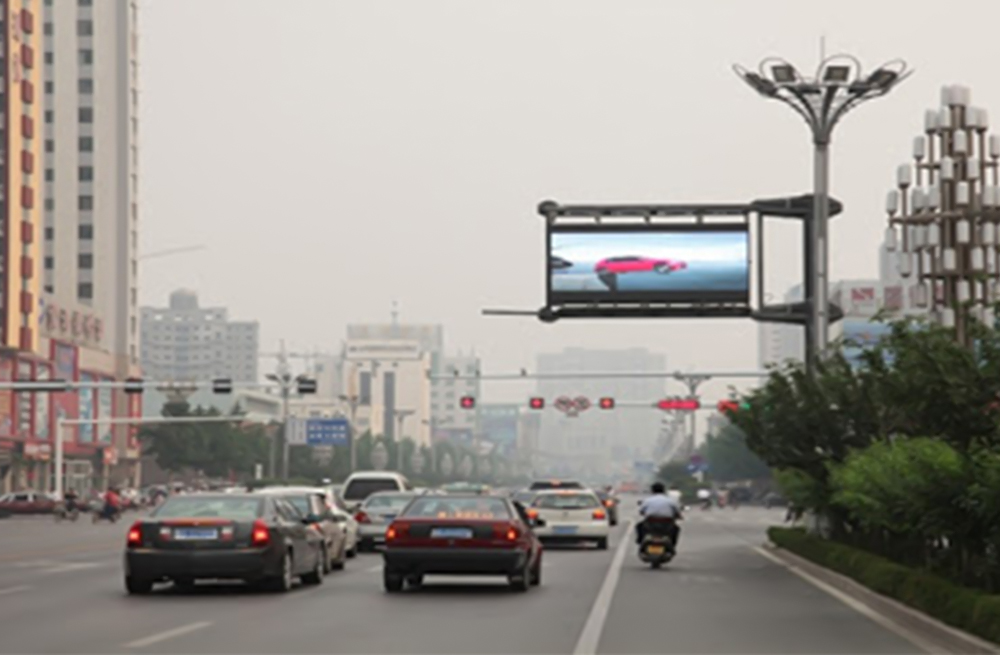
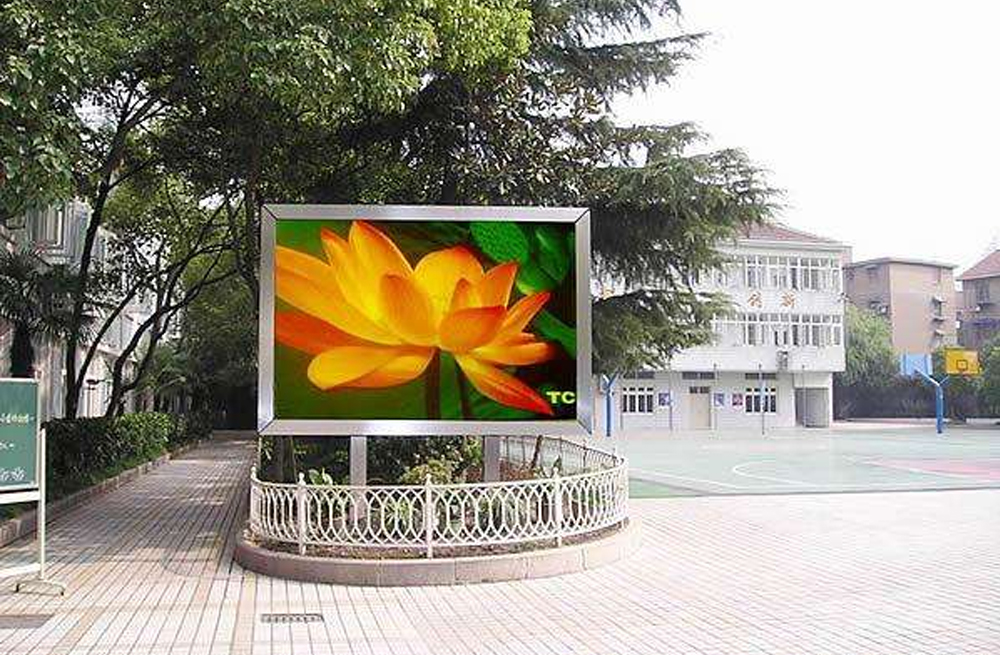
This Huidu LED Controller Guide compares asynchronous, synchronous and dual-mode control, then explains HDPlayer setup, hardware checks and troubleshooting. It is intended for sign owners, installers and buyers who need to know what to connect, configure and verify.
Which control mode should you choose? Choose asynchronous control when an LED sign must play stored content independently. Choose synchronous control when it must follow a live video source. Choose a compatible dual-mode player when the same screen needs both. The right choice depends on the content workflow, screen layout and receiving hardware working together.
Features vary between models and hardware revisions. Use the examples to understand the system, then confirm the specifications for your exact hardware.
1. What a Huidu LED Controller Does
A controller connects your content source to the electronics that drive the LED modules. An asynchronous player stores and plays programs. A synchronous sender takes a live video signal and distributes display data. Receiving cards inside the cabinets translate that data into signals for the modules.
Some compact control cards integrate sending and receiving functions. Larger installations commonly use a separate player or sender plus multiple receiving cards. The physical arrangement therefore depends on the controller and screen design.
One distinction matters throughout this Huidu LED Controller Guide: a management connection and an LED data output are different paths. A management LAN connection handles configuration or content transfer. An LED output feeds receiving cards. Similar-looking RJ45 sockets do not make those functions interchangeable; follow the labels and the exact model’s wiring diagram.
2. Huidu LED Controller Guide to Async and Sync Control
(1) Asynchronous control for stored content
An asynchronous controller plays programs from local storage after they have been transferred. The editing computer does not have to remain connected for locally stored playback. This suits recurring advertisements, opening hours and scheduled notices.
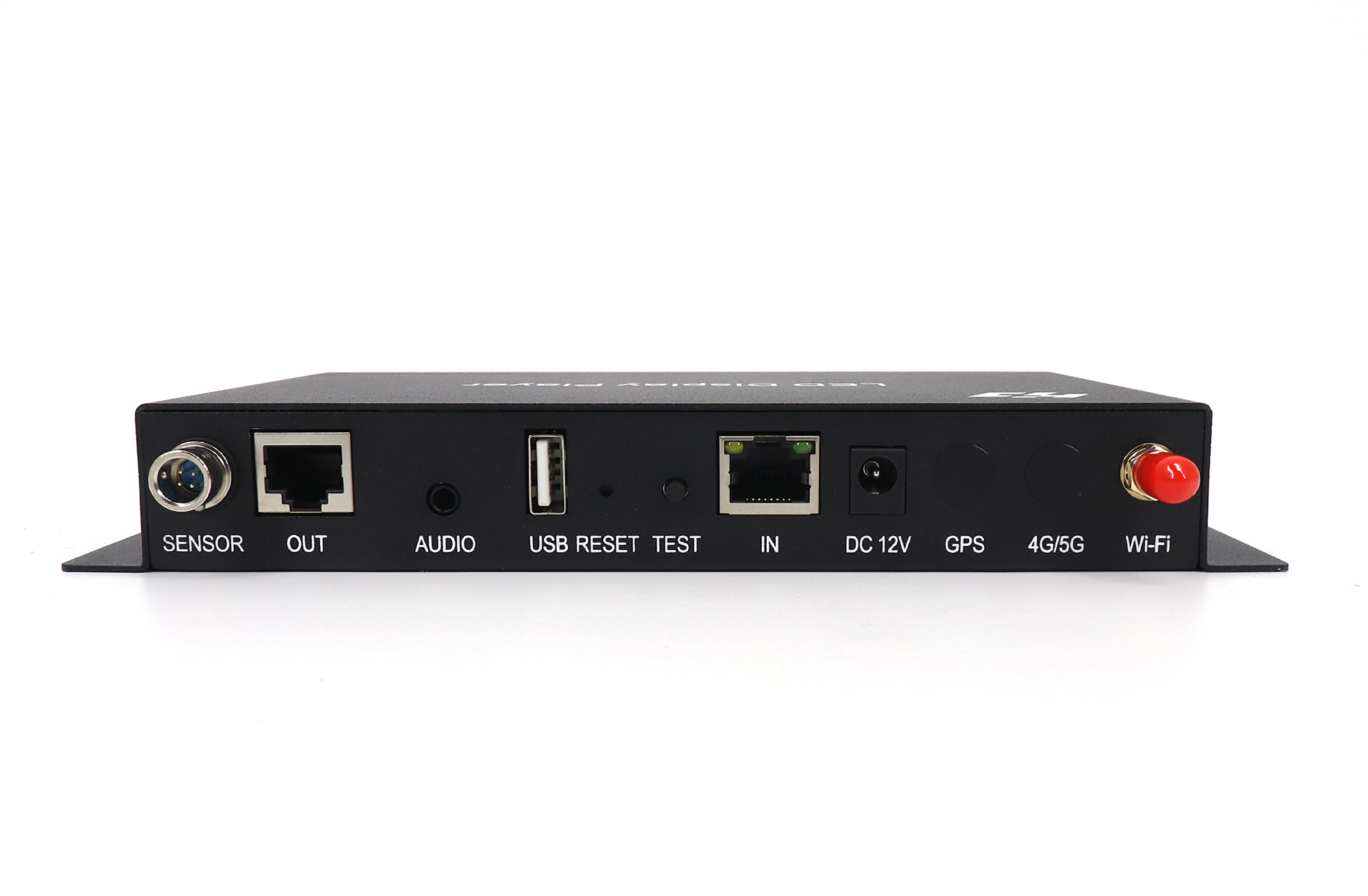
The HD-A3 illustrates this approach: it is an asynchronous player used with HDPlayer and compatible receiving hardware. Network access may be needed to send new material or retrieve online content, but that is separate from playing an existing local playlist.
(2) Synchronous control for live video
A synchronous system follows a continuous video feed, such as a presentation computer or another compatible source. If the source stops sending, the system cannot simply continue playing that live feed independently.
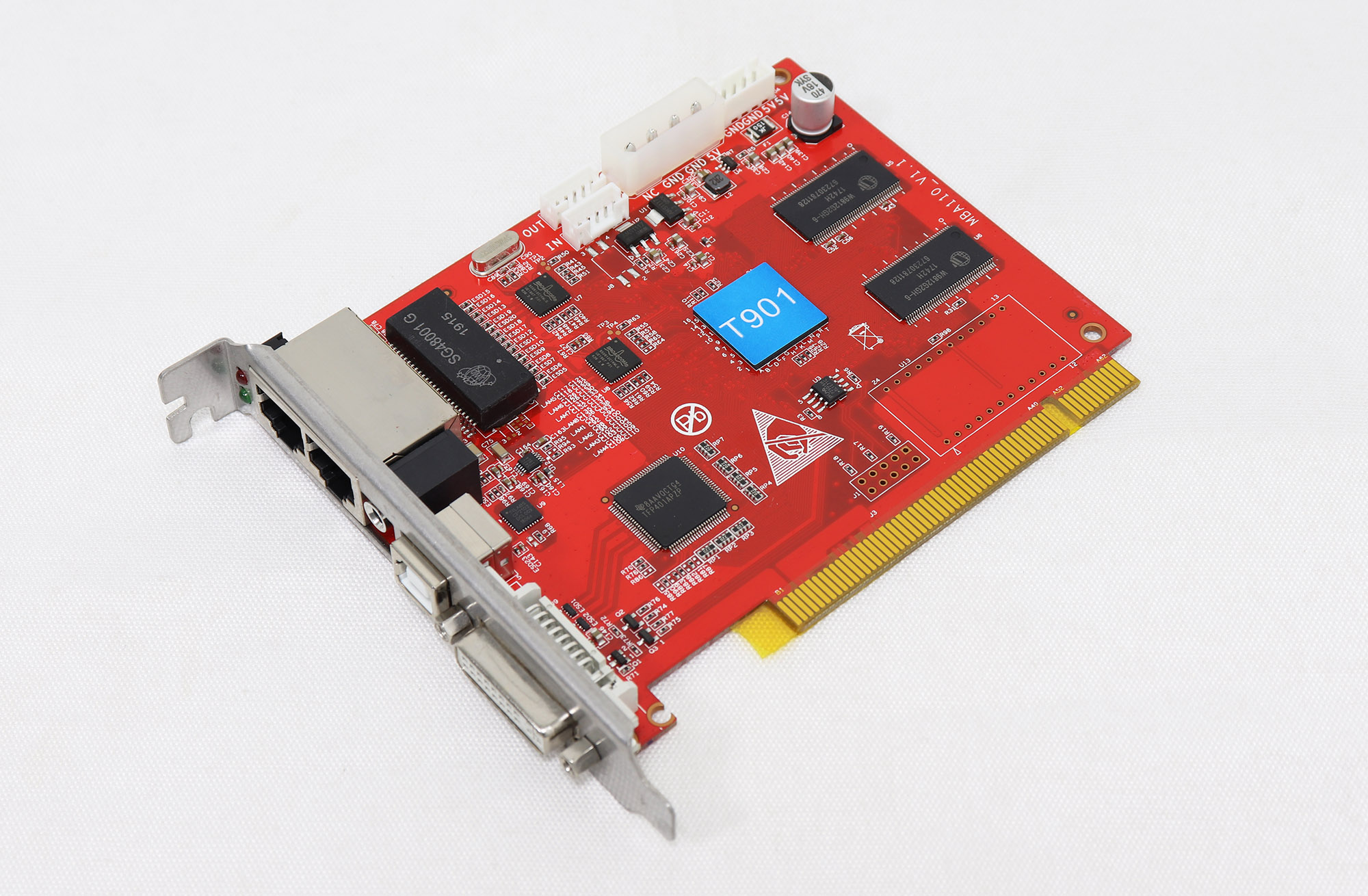
The T901 is an example of a synchronous sending card with a DVI video input. Its configuration connection does not replace the video input. For a conference or live production, check the complete route from source to screen, including any adapter or processor, before selecting the sender.
(3) Dual-mode playback for mixed requirements
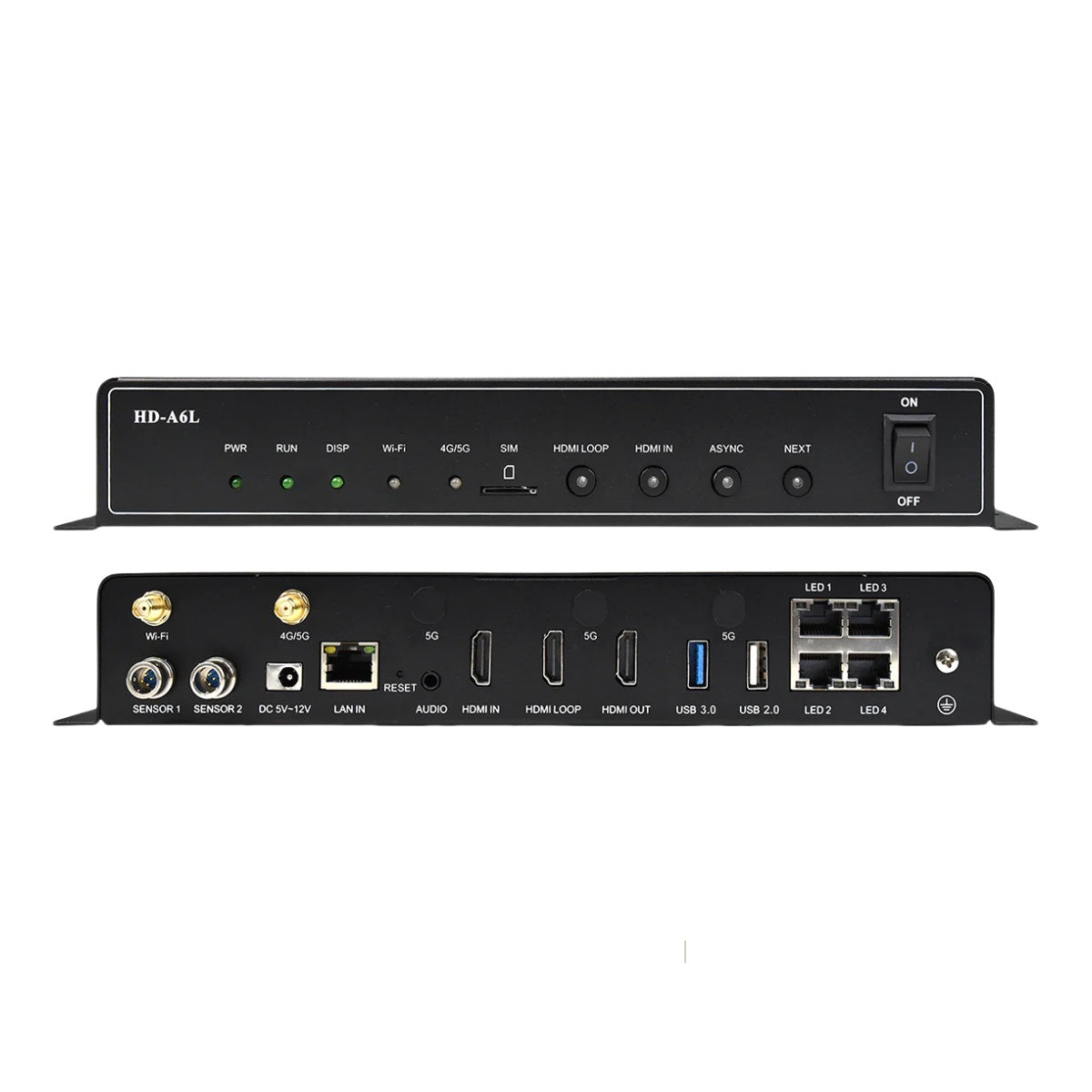
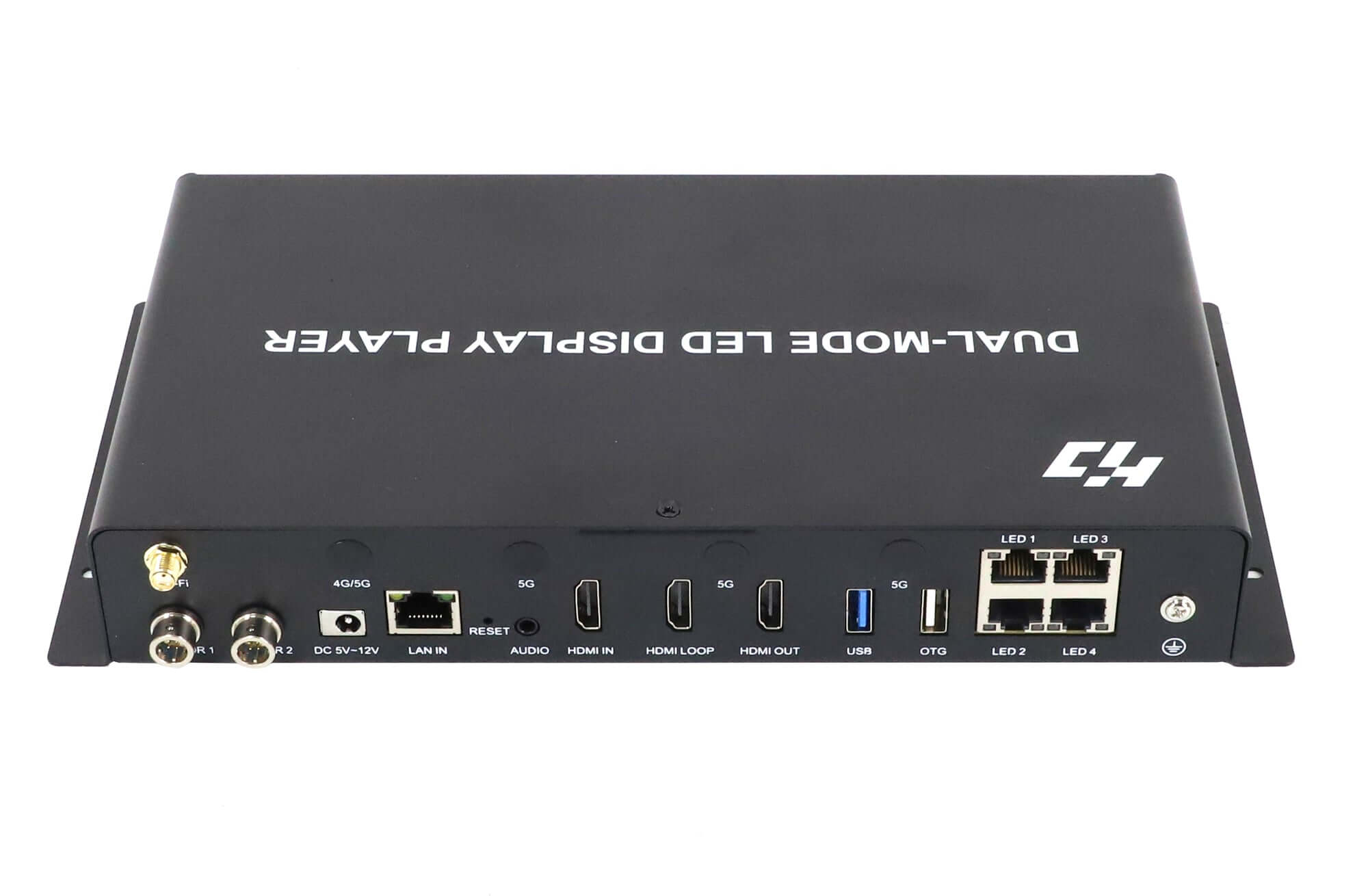
Supported dual-mode players, including the HD-A6L, combine stored playback with live-input operation. A venue can use scheduled advertising between presentations and then select a live source. Confirm how the specific device switches modes and what happens when the source disappears; automatic fallback is not a safe assumption.
The decision table in this Huidu LED Controller Guide compares the operating requirements rather than ranking one mode as universally better.
| Mode | Best fit | Live source needed | Check before choosing |
|---|---|---|---|
| Asynchronous | Stored playlists and schedules | No, for stored playback | Storage, media support and update route |
| Synchronous | Live presentations or video | Yes, during live playback | Input format and source-to-screen path |
| Dual mode | Stored content plus live input | While in live mode | Supported modes and switching behavior |
3. How to Choose the Right Huidu Controller
(1) Match pixel dimensions and receiving hardware
Start with the screen’s actual pixel width and height. Multiply them to obtain its total pixel count. For example, a hypothetical 960 × 320-pixel screen contains 307,200 pixels. This calculation describes the screen, not the capacity of any particular Huidu product.
Next check maximum width, maximum height, total load and the distribution across output ports. These limits must all fit your design; a maximum width and maximum height cannot automatically be combined into one supported resolution. Also confirm the receiving-card revision, module driver IC, scan configuration and cabinet wiring.
This Huidu LED Controller Guide treats video decoding resolution separately from LED loading capacity. A player able to decode a high-resolution video file does not necessarily drive an LED canvas of the same size. Check both specifications before purchasing.
(2) Check inputs and content update methods
List the signals you actually need: stored files, a live HDMI source or a live DVI source. Then identify how staff will publish changes: local Ethernet, supported Wi-Fi, USB transfer or a compatible remote-management service.
An antenna connector or SIM position does not prove that a cellular modem is installed. Likewise, a USB socket alone does not establish support for every playback function. Check supplied accessories, supported media and software compatibility for the exact unit. A useful purchasing request includes the screen dimensions, receiver model, wiring layout, required input and preferred update method.
4. HDPlayer Setup from Connection to First Playback
HDPlayer is used to create and send programs to compatible Huidu devices. HDSet handles hardware configuration in supported systems and can be accessed through hardware-setting workflows. Software menus and available functions vary by version and device. This Huidu LED Controller Guide uses a commissioning sequence that keeps content editing separate from changes to the screen electronics.
(1) Identify the device and connect
- Record the hardware. Photograph the controller label, note its firmware and identify the receiving cards. Obtain the appropriate software and instructions from Huidu or your equipment supplier. Keep the existing installer and configuration if the screen already works.
- Establish management access. Connect through the interface specified for that model. On a player with separate LAN IN and LED outputs, use the management port for the computer or router. Check power, link activity and the discovered device ID before sending anything.
(2) Verify screen settings before publishing
- Protect the working configuration. Back up accessible receiver parameters and connection mapping before making changes. If modules already display correctly, a new playlist should not require experimenting with scan settings. For a new installation, use the matching module configuration and verify cabinet order with a suitable test pattern.
- Set the content canvas. Enter the intended screen width and height in pixels, then confirm the selected device. Keep the content layout within that canvas. A wrong canvas can crop or stretch a program even when the physical screen mapping is correct.
(3) Create and send a test program
- Build something simple first. Create a program with a clear image and a short text region. Check region positions, text size and playback duration in preview. Save the editable project and its media. Introduce video after the basic layout works, using a format and encoding supported by the player.
- Send and verify. Transfer the program to the intended device, or use the supported USB export workflow. Wait for completion, then examine the actual LED screen. Check edges, cabinet alignment, colors, schedules and brightness. For stored playback, confirm operation after disconnecting the editing computer. A successful transfer message proves delivery, not correct visible output.
5. Troubleshooting Connection and Playback Problems
Work from the failing stage instead of changing several settings at once. This Huidu LED Controller Guide separates discovery, content delivery, live input and screen mapping so that each check answers a specific question.
| Symptom | First checks | Avoid |
|---|---|---|
| Device not found | Power, management interface, network link and device ID | Changing receiver parameters to fix discovery |
| Transfer succeeds but screen is blank | Active program, schedule, brightness and selected mode | Assuming transfer success proves playback |
| Picture repeats or shifts | Canvas size, cabinet mapping and cable order | Overwriting a working configuration |
| Live input has no picture | Selected input, source output and supported signal format | Using an output socket as an input |
If a simple still image works but a video does not, investigate the file’s codec, dimensions and encoding profile against the player’s supported media requirements. Renaming an extension does not convert a file. Test a short compatible clip before rebuilding a complex playlist.
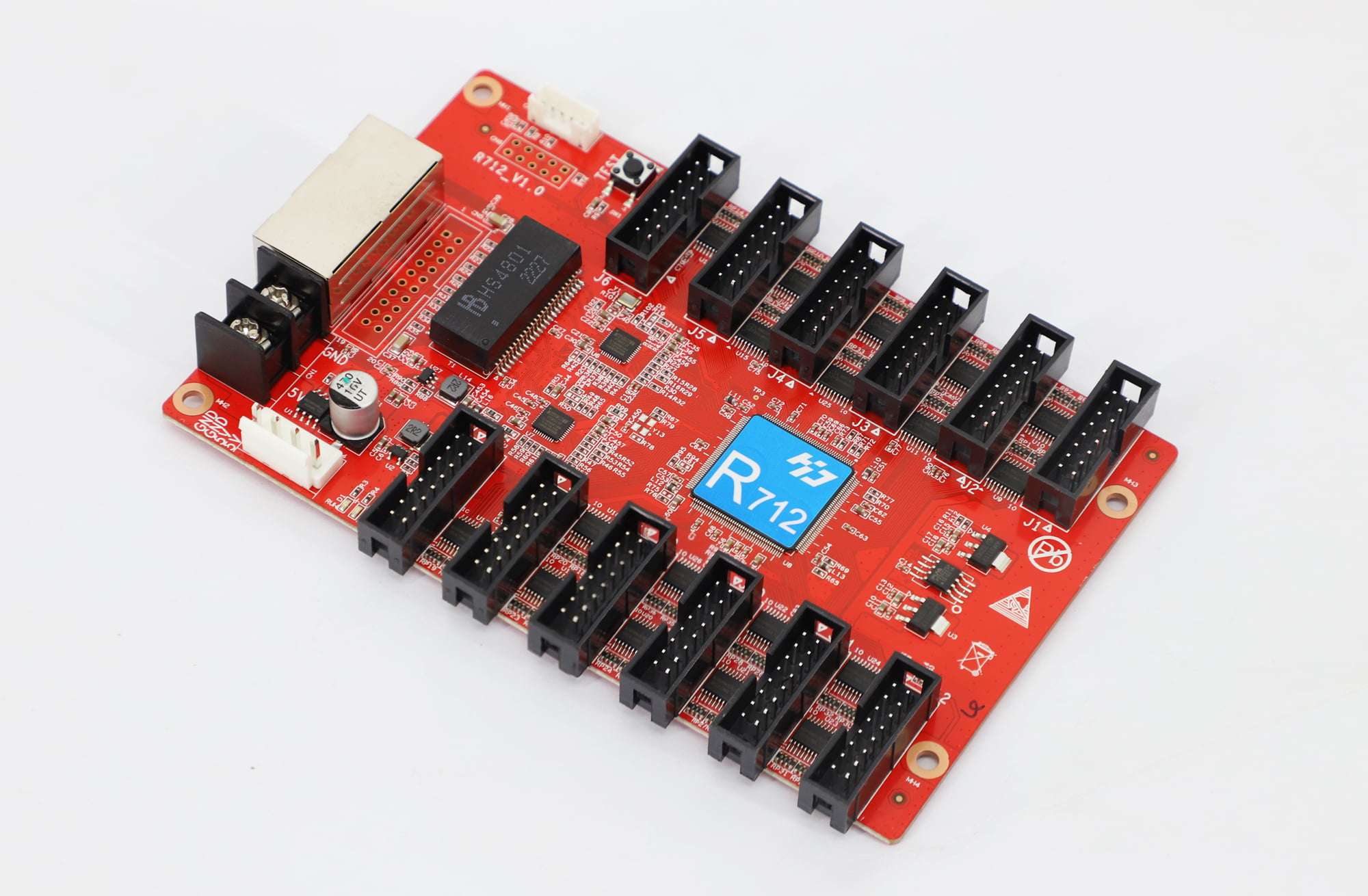
Repeated sections, swapped cabinets or wrong colors can originate after the player, at the mapping or module-configuration stage. Inspect the receiver model and connection order before replacing hardware. Keep a record of each change and restore the previous settings if the symptom worsens. When escalating a fault, send the supplier the exact model, firmware, screen dimensions, a wiring description and a photograph of the visible problem.
6. Frequently Asked Questions
(1) Can a Huidu LED controller keep playing when the internet goes down?
An asynchronous player can continue displaying a program already stored locally, provided power and the local LED signal path remain available. Live web content and remote updates may stop. Test the real playlist with internet access removed: a locally stored background and an online information region can behave differently during the same outage.
(2) Can I control a Huidu LED display with LedArt on my phone?
Some Huidu players support mobile management through compatible apps such as LedArt. Confirm support for your controller and the required connection method. Routine content changes may be possible from a phone, while commissioning or recovery may require desktop software. Check the tasks you need, rather than assuming the mobile and desktop tools are identical.
(3) Can I replace a Huidu controller and keep my receiving cards?
Receiving cards can be reused only if the replacement controller, receiver family, firmware and module configuration are compatible. A matching Ethernet connector is insufficient evidence. Ask the supplier to confirm the combination and retain the existing receiver files. This Huidu LED Controller Guide recommends checking a representative cabinet before committing the entire display to a replacement controller.
(4) Will the display resume the correct program after a power failure?
Not necessarily. Playback after a power failure depends on stored content, startup settings, active mode and the controller’s clock. Do not assume that restored power guarantees the intended schedule. During commissioning, perform a controlled restart after saving the configuration. Check the selected program, time zone and schedule boundaries, especially if the sign displays different material at different times of day.
(5) Can HDPlayer send different programs to multiple Huidu screens?
Supported HDPlayer network workflows can manage multiple devices. Create and identify the appropriate screen projects, then match each program to its target device and dimensions. Sending content to several screens is different from keeping their playback precisely synchronized. For coordinated video across separate displays, confirm the supported synchronization method and hardware requirements independently.
(6) What should I back up before updating firmware or replacing a controller?
Save the editable content project, original media, screen dimensions, receiver configuration and cabinet mapping. Record device IDs, firmware versions and connection settings, and photograph the wiring. Store the backup away from the controller. Obtain the correct firmware and update procedure for the exact hardware; do not begin an update merely because a newer file exists.
(7) How do I choose an HDPlayer version for an older Huidu controller?
Choose a version confirmed to support the controller and its firmware. Start with the supplier’s compatibility guidance or the relevant Huidu download information. Preserve the working installation and project before changing versions. Verify discovery, configuration access and a small test program first; a newer interface alone is not a reason to migrate a stable system.
7. Conclusion
The central choice in this Huidu LED Controller Guide is how the screen receives its content: stored programs, a continuous live feed or both. Once that is clear, match the controller to the pixel dimensions, receiving hardware and update workflow. Keep content management separate from hardware configuration, preserve working settings and verify the finished program on the actual display. A short requirements list and a simple playback test resolve more uncertainty than choosing by model name or advertised resolution alone.