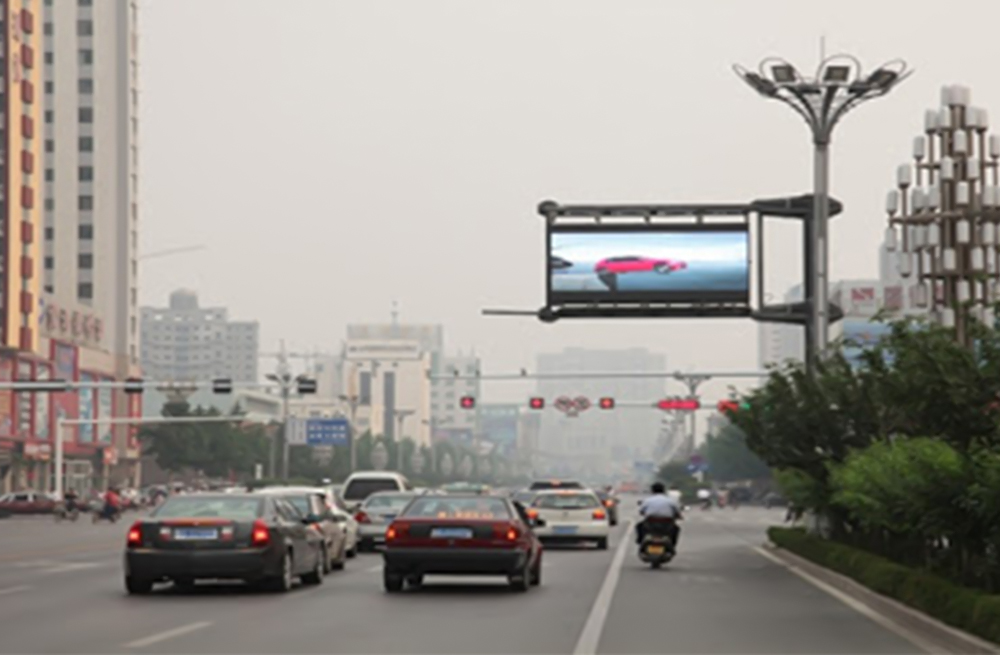
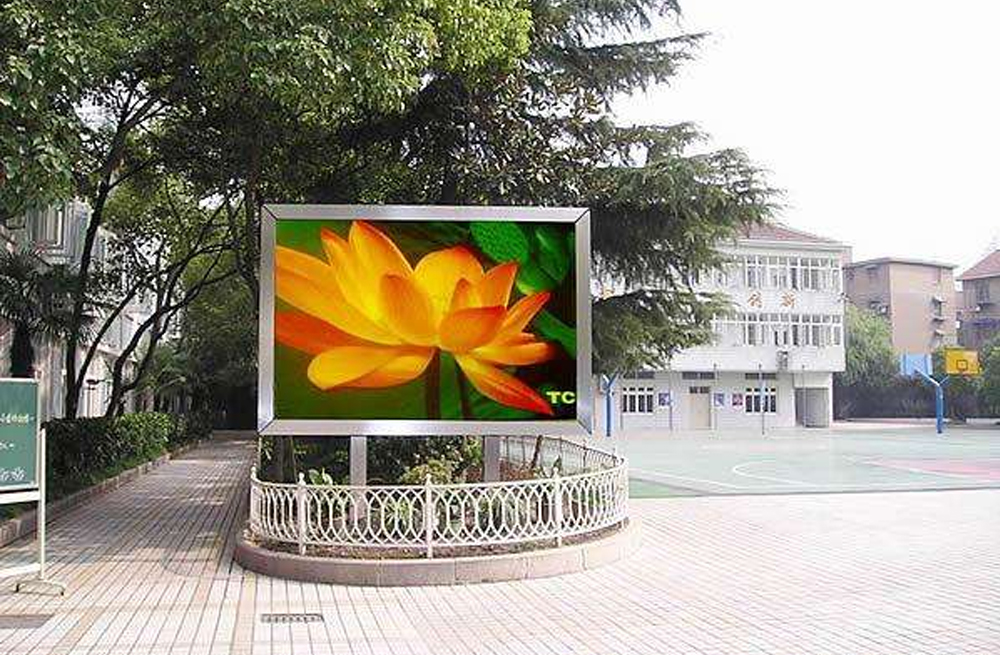
A Kystar Control System works correctly when its sending hardware, receiving cards, firmware and software support the same display requirements. Start with the exact device models and the job you need to perform. Screen configuration, content publishing and media-server playback require different tools, even when the equipment comes from one manufacturer.
For an installer, the priority is a correctly mapped screen with suitable module parameters. For a signage operator, it is reliable program delivery. An event technician also needs predictable source switching and playback. This guide explains how to match those needs to the hardware, check the signal path and preserve a working setup for future maintenance.
1 Understand the hardware in a Kystar Control System
Sending devices and video controllers
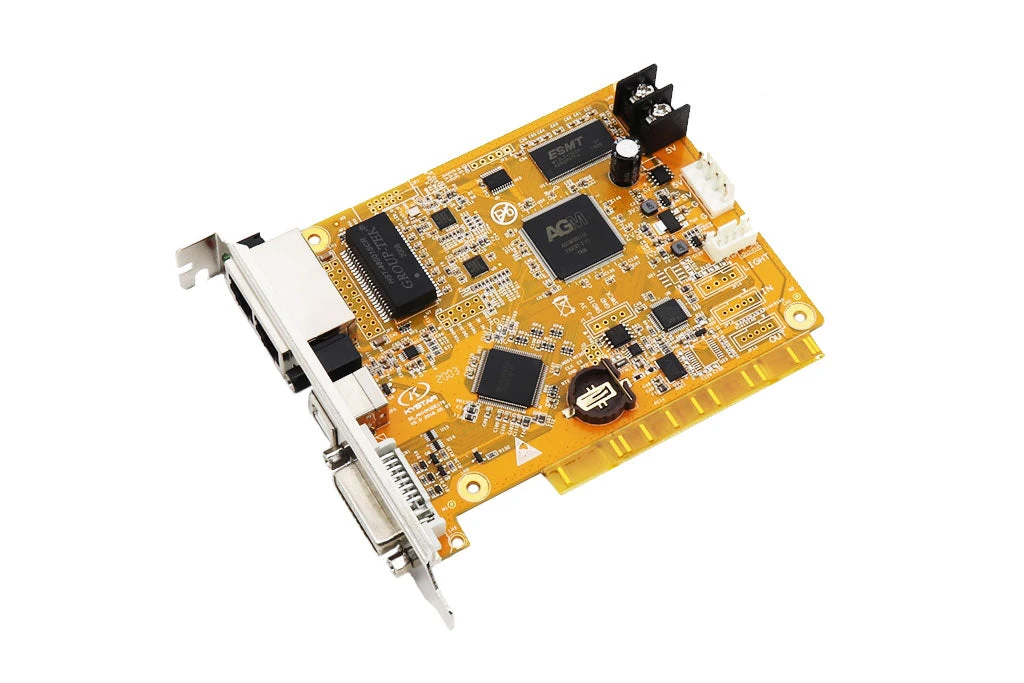
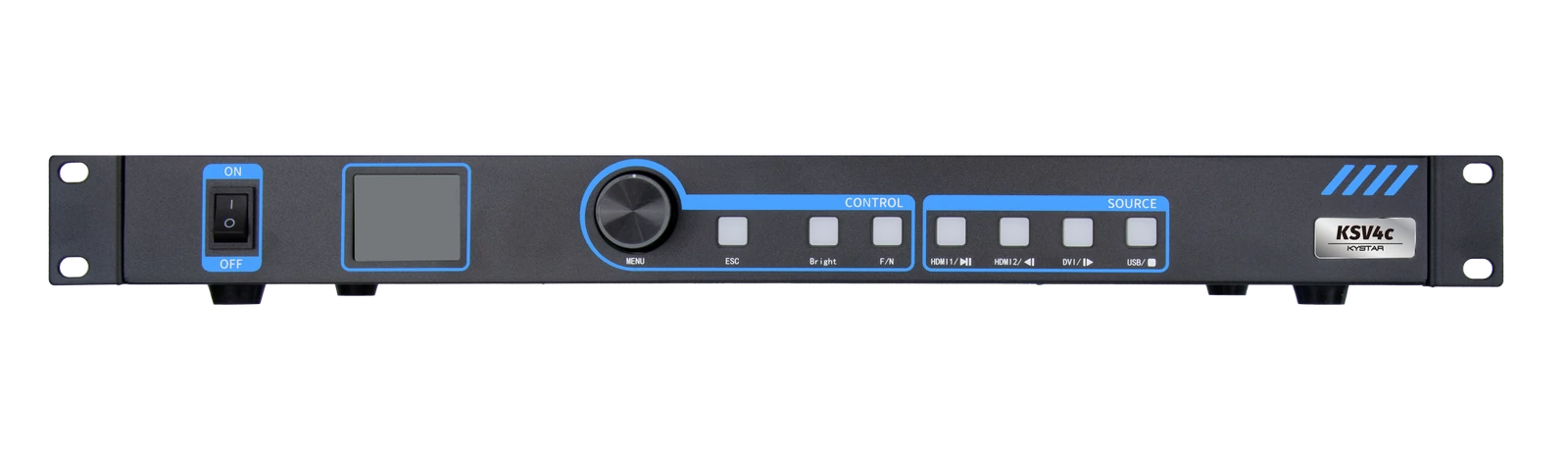
A sending device takes an incoming video signal and transmits display data to receiving cards. A video processor handles tasks such as scaling and source selection. An integrated controller combines video processing with sending functions, which can reduce the number of separate devices. Confirm which functions are built into the particular unit.
Receiving cards and module interfaces
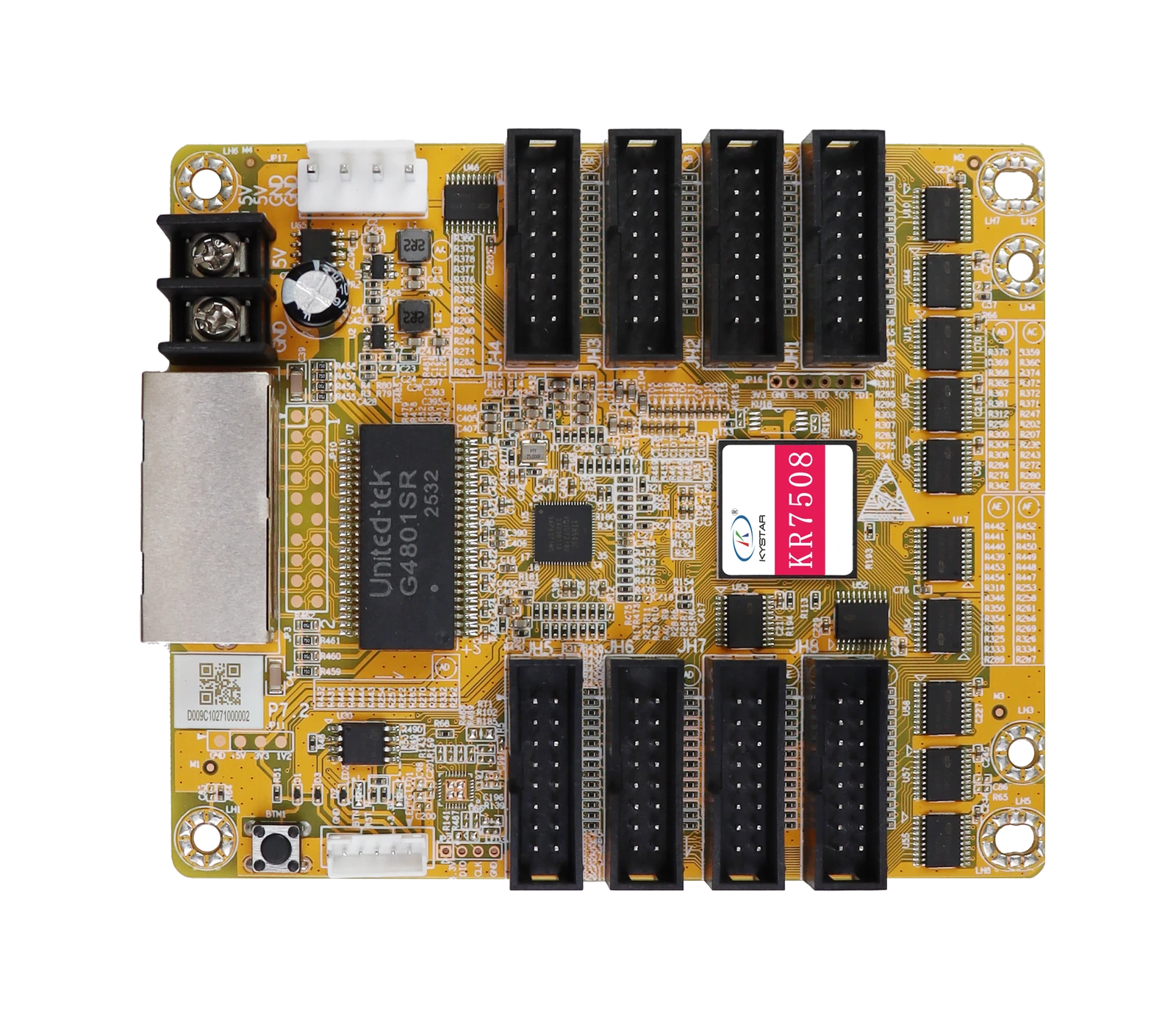
Receiving cards sit inside the LED cabinets and translate incoming data into signals for the module driver circuitry. In a Kystar Control System, the receiver must suit the module interface, driver IC, scan arrangement and required loading. A matching connector does not establish electrical or functional compatibility.
Include the full model suffix and hardware revision in a replacement request. Also record how the card connects to the cabinet adapter board. This helps the supplier assess the proposed replacement against the existing module wiring and required software functions.
Media players and media servers
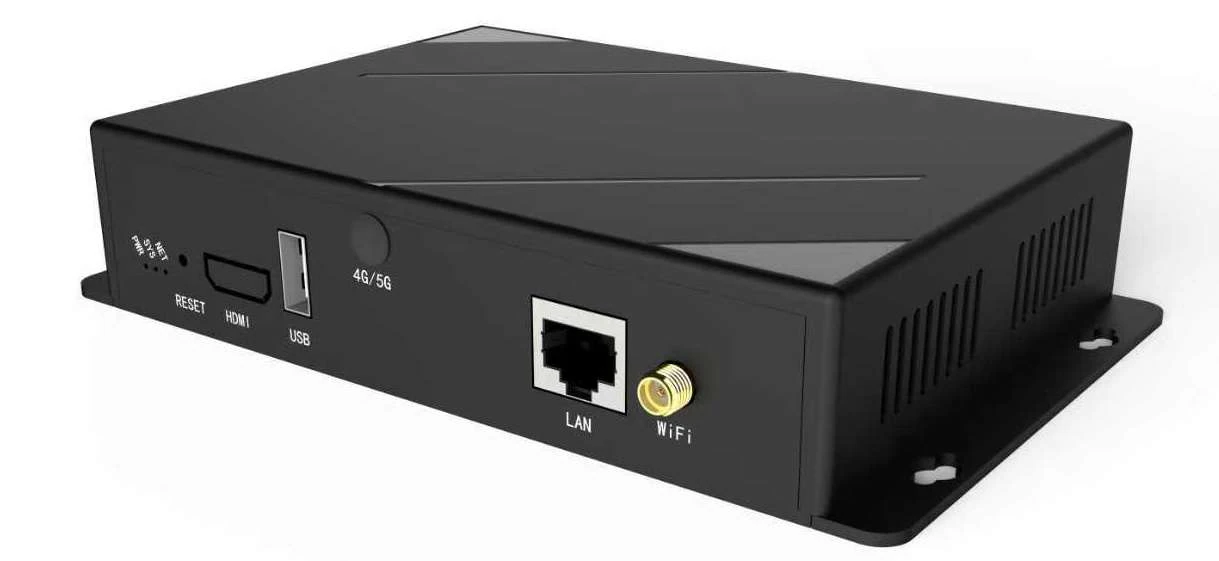
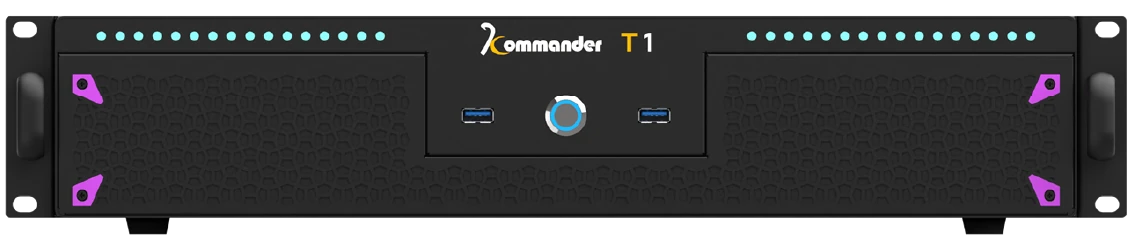
An asynchronous player stores and plays published content locally. Some players also accept a live input. A media server runs playback software for more demanding content layouts and coordinated outputs. These products have different configuration and operating requirements, so identify the actual hardware instead of choosing software by the word “controller” alone.
2 Match each hardware task to the right software
Use the Kystar Control System software for screen commissioning on supported sending devices, receiving cards and integrated controllers. Its role includes receiver setup and display connection mapping. A content editor prepares programs for playback terminals, while media-server software manages playback on the server. Keep those tasks separate when selecting an installer.
The following table is a selection guide. Confirm the exact hardware and release combination before installing or updating software.
| Task and hardware | Software to check | Essential match |
|---|---|---|
| Commission supported senders, receivers and integrated controllers | KYSTAR Control System | Device models, firmware and required configuration functions |
| Edit and publish to supported Pandora players | Kystar PE / Pandora Editor or the specified app | Player generation, editor release and transfer method |
| Publish remotely to supported terminals | Kares cloud platform | Terminal support, account binding and network access |
| Run media-server playback | Model-specific Kommander package | Server model, software edition and activation terms |
| Operate supported devices remotely | Kommander Cloud Control Assistant | Explicitly supported devices and available controls |
For example, the Pandora KD1 product documentation identifies Kystar PE for program editing and Kares for cloud management. This does not make every editor release suitable for every older Pandora player. Likewise, the download center lists separate Kommander packages, so the product family and edition matter.
Kares and Kommander Cloud Control Assistant also serve different workflows. Kares provides terminal publishing and management; the assistant lists supported equipment for remote operation. Installing one does not automatically add the other workflow to an unsupported device.
Record the current software and firmware before making changes. A newer release may address a particular feature or hardware generation, but its version number alone does not prove that it is the right choice for an existing installation.
3 Check pixel capacity and the complete signal path
Calculate the screen resolution from its cabinet layout, then multiply pixel width by pixel height. A hypothetical 1,920 × 1,080 display contains 2,073,600 pixels. This is a sizing example, not a capacity claim for any pictured product.
A Kystar Control System must satisfy several limits simultaneously: total sending capacity, the load on each output port, receiver capacity and maximum screen dimensions. A screen can fit the total pixel allowance while exceeding the limit of one port or its permitted width. Calculate each cable chain from the actual cabinets assigned to it.
Check the intended input resolution and frame rate as well as the output configuration. Video frame rate describes incoming picture timing; LED refresh rate describes how the display is driven. One value cannot be used as evidence for the other. Supported bit depth and operating mode can also affect the available loading, so use the limits for the intended settings.
Finally, distinguish LED data outputs from management-network ports. Similar RJ45 sockets may perform different jobs. Follow their labels and the wiring instructions, and use ordinary network equipment in the LED data path only where the manufacturer explicitly supports that topology.
Plan the content canvas separately from the computer desktop. Scaling a standard presentation into an unusually wide LED layout can make text difficult to read. Agree which device performs scaling and check a native-resolution test image before approving the content design.
4 Choose a setup for your display workflow
Live video and source switching
For a meeting room or event, plan around the sources that will actually arrive: a presentation computer, camera feed or production switcher. Select the processing and sending hardware for those connections and required timings. Rehearse source changes and the intended fallback signal before the display is needed.
Scheduled signage and remote publishing
For advertising loops, a compatible player can store content and play it without continuous computer video output. Separate the local playback requirement from remote updates. Verify supported formats, available storage and publishing methods on the selected model. A Kystar Control System used for signage still needs correct cabinet configuration before any playlist can display properly.
Media servers for coordinated playback
Choose a media server when the project requires the output arrangement and playback functions of its matched Kommander package. Check the actual media files, simultaneous layers and output timings in a rehearsal. Where several outputs must stay synchronized, confirm the supported synchronization arrangement across the server and downstream equipment. Purchasing additional outputs alone does not establish synchronized playback.
5 Commission the matched hardware and software
Commission a Kystar Control System in a controlled order so that a software change does not hide a wiring or module-parameter problem.
- Record the installation. Photograph model labels and note firmware, software versions, cabinet pixel dimensions and port assignments. Preserve the existing configuration before changing a working screen.
- Prepare communication. Install the supported software package and required drivers. Use the documented USB, serial or network control connection. Confirm that detected devices match the physical installation.
- Verify receiver parameters. Use the cabinet manufacturer’s approved parameter file or verified module information. Confirm driver IC, scan arrangement, color order and the area assigned to each receiver. Test one representative cabinet before applying settings more widely.
- Map the display. Reproduce the physical cabinet order and cable direction in the connection settings. Check each port independently so a swapped cable is not disguised by unnecessary mapping changes.
- Test pictures and content. Check solid colors, grayscale and patterns that reveal cabinet boundaries. Then test the actual sources or media files, including source changes and scheduled playback where required.
- Save and prove recovery. Save settings using the model’s documented procedure. Restart during an agreed maintenance window and verify that the intended configuration returns. Hand over backups, the cabinet map and a recovery procedure.
Treat firmware updates as a separate maintenance decision. Confirm the target model, the reason for updating and the recovery method first. Avoid upgrading several components at once while investigating an unresolved fault.
Where calibration is used, preserve its records separately from basic receiver parameters. A backup that restores cabinet mapping may not restore every image-quality setting. Label each saved file by cabinet type and purpose so maintenance staff can identify the correct recovery material.
6 Diagnose hardware and software mismatches
When a Kystar Control System fails, locate the layer that has stopped working before replacing hardware. A useful first distinction is whether an internal test pattern displays correctly. The table identifies checks to make; each symptom can have more than one cause.
| Observed symptom | First checks |
|---|---|
| Hardware is not detected | Power, control interface, data cable, driver and model support |
| Test pattern works but source video is absent | Selected input, source output timing, cable and EDID settings |
| Cabinets display the wrong image order | Physical cable chain, receiver dimensions and cabinet mapping |
| Published content does not appear | Target terminal, permissions, transfer completion and active schedule |
EDID is the capability information presented to the video source. If it or the source timing is wrong, changing receiver parameters may not help. Record what changed immediately before the fault, then alter one setting at a time and retest.
FAQ
1 Can I run the Kystar Control System software natively on macOS?
Use the operating system specified for the exact release. The documented control-software installation uses Windows components and drivers; do not assume native macOS compatibility. Browser access to a supported cloud service is a separate capability and does not replace device-configuration software.
2 What should I do if my original KYSTAR receiving card is discontinued?
Ask for a replacement approved for the existing cabinet. Supply the original card model, module interface, driver information and configuration backup. Before replacing a larger batch, validate one cabinet, including its image quality and any calibration or backup functions the installation uses.
3 Can I import a NovaStar or Colorlight configuration into KYSTAR software?
Do not assume configuration files transfer between control ecosystems. Obtain the module specifications or an approved KYSTAR parameter file from the cabinet supplier. A similar screen size or matching cable connector does not establish file-format or receiving-card compatibility.
4 How do I transfer a cloud-managed KYSTAR player to a new owner?
Arrange the transfer with the current account administrator or supplier. Confirm terminal ownership, account binding and permissions, then agree how existing content should be handled. Follow the process for the specific platform; do not assume a factory reset releases a cloud binding.
5 Why does a published playlist start at the wrong local time?
Compare the terminal clock, time zone and schedule dates with the intended location. Check any supported clock-synchronization settings and confirm that the active program has the expected timing rules. A completed upload confirms transfer, but does not prove the schedule is correct.
6 Must I remake my video after changing the cabinet layout?
If only the cable order changes while the visible pixel canvas stays identical, corrected mapping may be sufficient. If the canvas dimensions, aspect ratio or arrangement change, review the content layout and export settings so important text and graphics remain correctly positioned.
7 Can I move my Kommander software license to another computer?
Check the exact edition and activation terms with the supplier before changing the computer. Transfer eligibility and activation methods must be confirmed for that package. Retain purchase and activation records, and verify the replacement installation before retiring the working server.
Conclusion
A well-matched Kystar Control System begins with identified hardware and a clear operating task. Choose screen-configuration software for commissioning, a supported editor or cloud platform for player publishing, and the correct Kommander package for media-server playback. Verify capacity across the complete signal path, including individual ports and receiving cards. Before handover, prove the system with real content and a restart, then preserve the working configuration. Those checks give the next operator enough information to maintain the display and select compatible replacements.