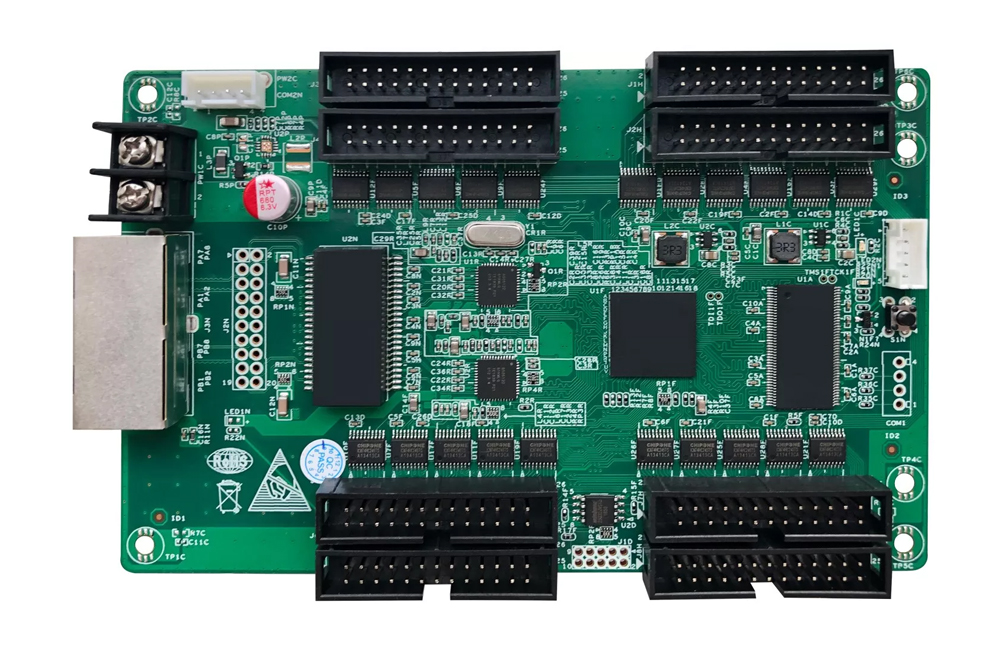
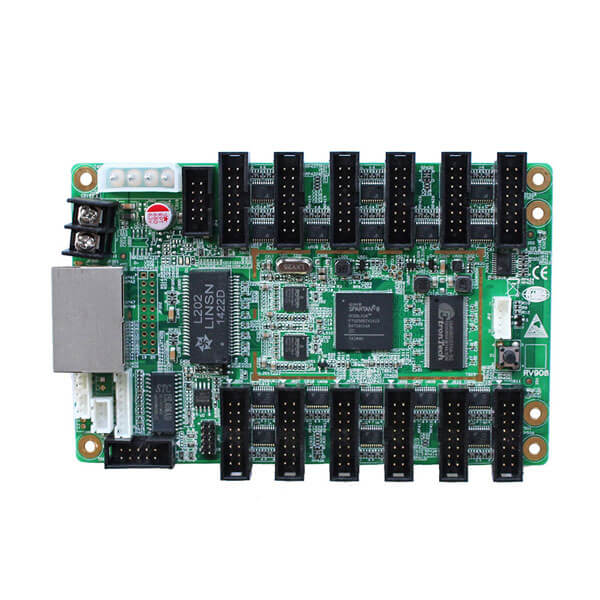
Quick answer: This Linsn RCG file download library provides free configurations for P1 through P31.25 and VP-series LED displays. Choose a file only after matching the module resolution, driver IC, scan mode, HUB wiring, RGB order, and indoor or outdoor design. Pixel pitch alone does not guarantee compatibility.
What is a Linsn RCG file?
A Linsn RCG file is a receiving-card configuration file for an LED display. It stores module parameters such as pixel dimensions, scan mode, driver IC settings, data-group mapping, and color order so the receiving card can drive the LED module correctly.
An RCG file is not video content or firmware. It is a hardware-specific configuration. Two modules with the same pixel pitch can still require different RCG files.
Free Linsn RCG file downloads
This library includes common indoor, outdoor, SMD, DIP, dual-maintenance, and VP configurations. Files are provided in ZIP or RAR archives. Select the closest match, extract the archive, and verify every module parameter before sending the configuration to a display.
Compatibility notice: These downloads are reference configurations, not universal settings. Back up the current working configuration and test on one receiving card or cabinet before applying a file to the full LED screen.
How to choose the correct RCG file
- Read the LED module label and receiving-card model.
- Record the module resolution, driver IC, scan rate, HUB or pin mapping, RGB order, and indoor or outdoor type.
- Use pixel pitch as the first filter, then match all hardware parameters.
- Keep a copy of the current working RCG file before making changes.
If the available file does not match every parameter, do not send it to the full screen. Use the module manufacturer’s original configuration or complete a controlled smart setup with the correct hardware data.
How to import and test a Linsn RCG file
- Download and extract the ZIP or RAR archive on the control computer.
- Connect the computer to the Linsn control system and confirm that the intended receiving card is online.
- Open the receiving-card or display-parameter section in the compatible Linsn control software.
- Choose the load or import option and select the extracted RCG file.
- Send the configuration to one receiving card or one test cabinet first.
- Check image orientation, module mapping, color order, scan behavior, brightness, and refresh performance.
- Only after the test is correct, send and store the configuration to the remaining receiving cards.
Menu names can vary between Linsn software versions. If the result is abnormal, stop the test and restore the backup configuration.
Common problems after loading an RCG file
- Blank or scrambled modules: Check module resolution, scan mode, HUB wiring, and data-group mapping.
- Wrong colors: Verify RGB order and driver IC settings.
- Repeated or shifted rows: Recheck scan rate, module height, and row decoding.
- Only part of the cabinet works: Confirm cabinet mapping, receiving-card load area, network connection, and power.
For more Linsn resources, see our Linsn LEDStudio configuration file library and browse Linsn technical articles.
Frequently asked questions
Can every LED module with the same pixel pitch use the same RCG file?
No. Pixel pitch describes LED spacing, but it does not identify the driver IC, scan mode, module resolution, HUB wiring, or color order. Those parameters must also match.
Should I apply a downloaded RCG file to the entire screen immediately?
No. Back up the working configuration, reduce operational risk, and test the file on one receiving card or one cabinet first. Expand the change only after the test image and color behavior are correct.
What should I do if the exact configuration is not listed?
Ask the LED module supplier for the original RCG file or build a new configuration from verified hardware parameters. Do not rely on a file selected by pixel pitch alone.
Why are some downloads ZIP files and others RAR files?
Both are archive formats. Extract the archive first, then select the RCG configuration file inside it from the Linsn software.